Add link key column
To add a link key to a link:
- Method 1
For each Link Key that you want to add to the entity:
- Right click on the link.
- In the context menu, click on
i-refactory > Add Link Key Column.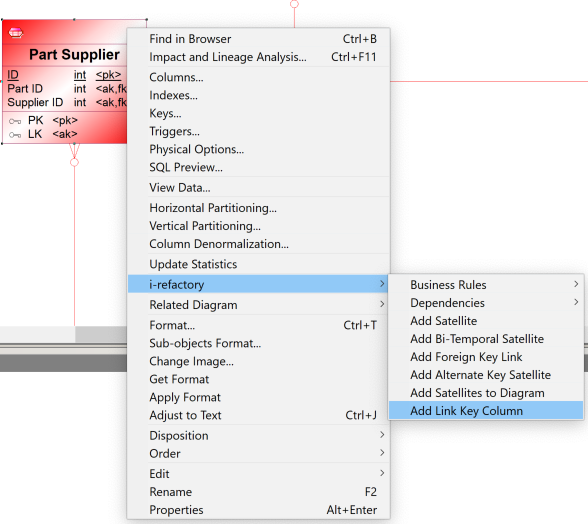
- This results in one generic Link key attribute added to the entity you just created.
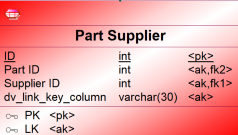
Next, you need to ensure that the Link keys are completely configured.
- Double click on the recently created link.
- Go to the tab named
Columns. - You see the Link key(s) named
dv_link_key_column.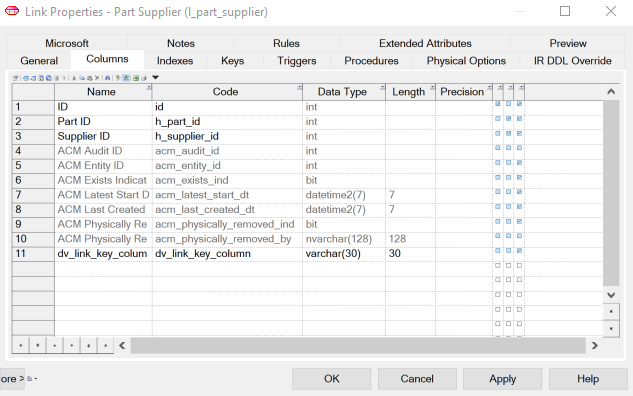
- Double click on the row that includes the
dv_link_key_column. - With the Logical Data Model as your reference, you define:
- Name
- Code
- Datatype
-
Repeat the steps above for all Link Key columns.
-
Method 2
-
Double click on the link.
- Go to the tab named
Columns. - Right click on a non-empty row. In the context menu, click on
i-refactory > Add Link Key Column. You see the Link key nameddv_link_key_column.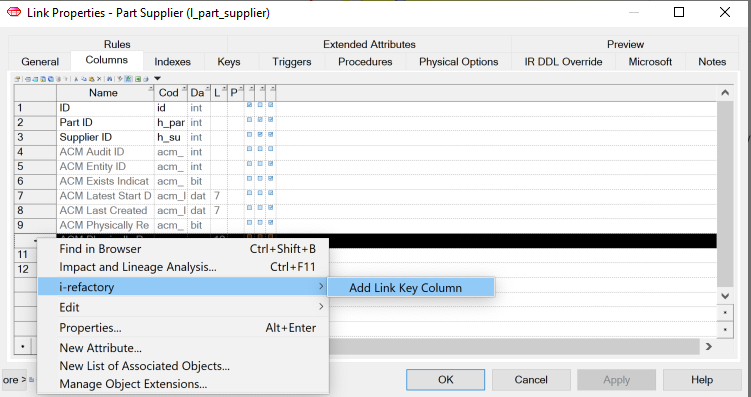
- Edit the values for
name,code, anddatatypedirectly in theLink Propertieswindow, with the Logical Data Model as your reference.
- Repeat steps
3and4for all Link key columns.