Add link
To create a link:
- In the Toolbox area, under
i-refact - Unified Anchorized Modelling - 2.5.0, click onLinkand then click on the Model Area.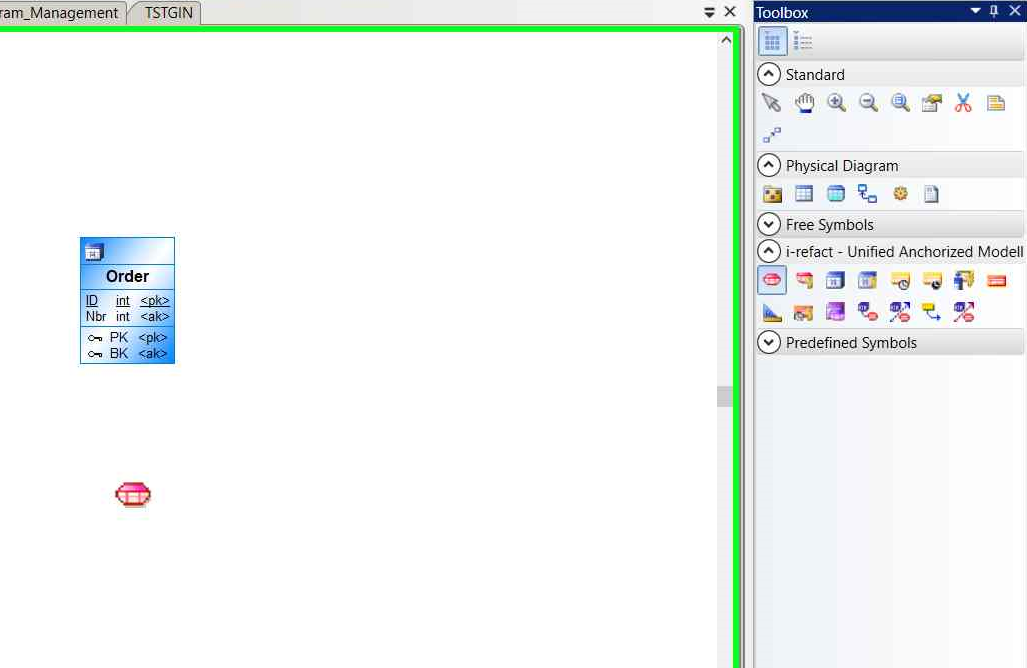
- A new link appears in the Model Area with the default name 'Link'.
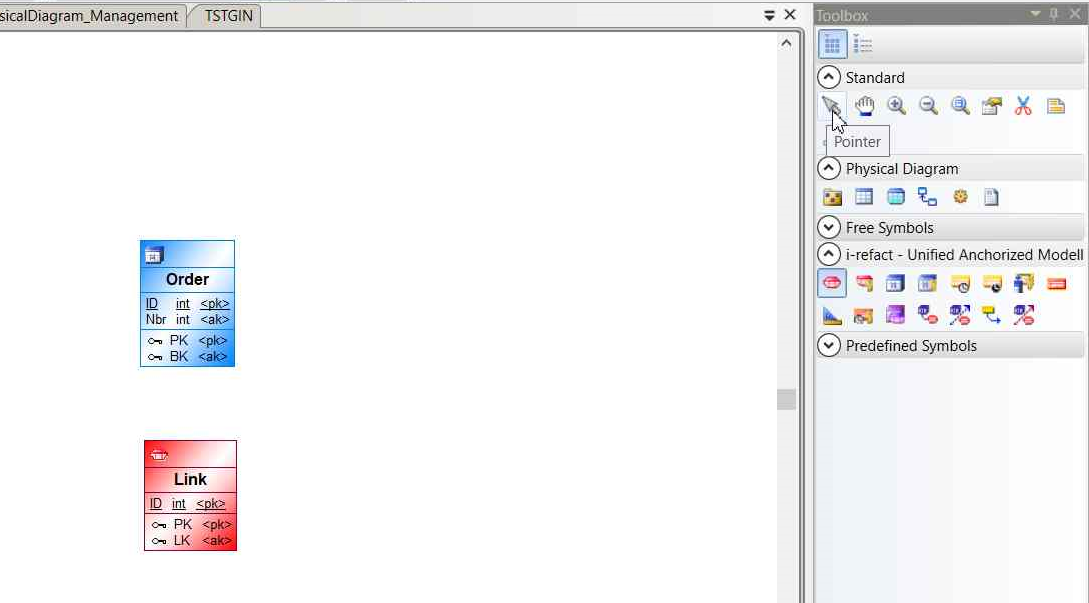
- In the Toolbox area, under
Standard, click onPointer. Double click on the new created entityLink. - The Window
Link Propertiesappears. Name: This is the business name for the object. You should use the same name used in the Logical Data Model. If you change thenameof an object, thecodewill automatically change as well.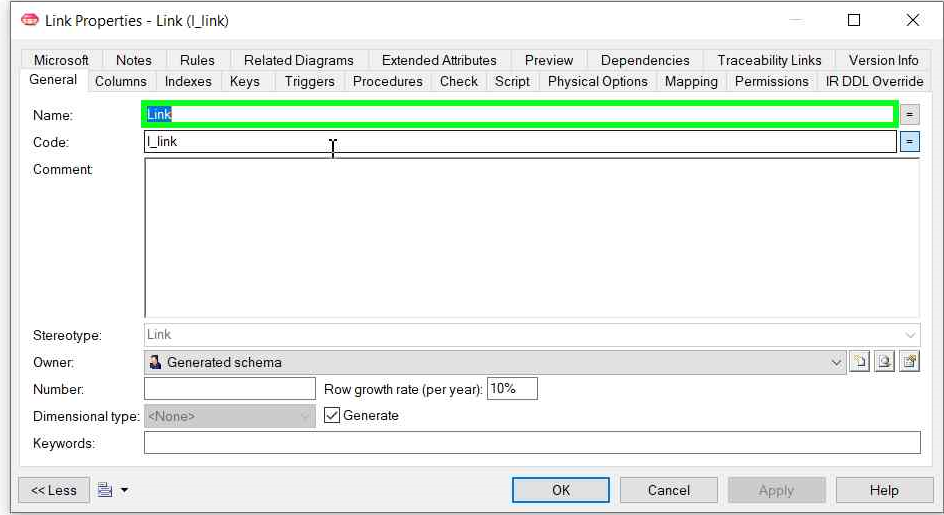
Code: This is the technical name for the object. The Code will be used in the generated SQL and DDL.Comment: You can give a more descriptive name for the table, for example the business term.Owner: Select the correct owner.
Warning
Never make a copy of an UAM object (hub, link, or satellite) within your model. The copied object is not a replica of an object in the Management Model, and this will cause trouble. Create a new object of the correct type instead.
- List of attributes of a link
A link contains the following columns:
ID: surrogate key- One or more Link Reference columns
- Zero or more Link Key columns
- A fixed number of metadata columns:
ACM Audit ID: reference to the load process ID in which the record was createdACM Entity ID: reference to the entity ID in the metadata repositoryACM Exists Indicator: a boolean value that indicates whether the business key currently exists- 0 = business key doesn't exist
- 1 = business key exists
ACM Latest Start Datetime: timestamp of the last time the business key was loadedACM Last Created Datetime: timestamp of the last time the business key was createdACM Physically Removed Indicator: a boolean value that indicates whether an anchor is physically removed- 0 = anchor exists
- 1 = anchor is physically removed
ACM Physically Removed By: contains the modifier responsible for the physical delete