Select source and target models
To select the source and target models:
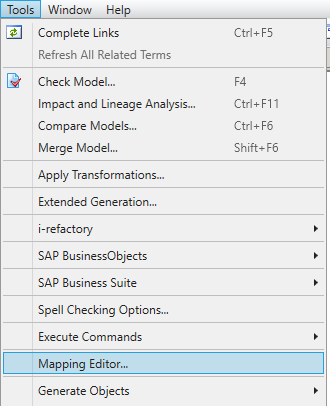
- Go to
menu > Tools > Mapping Editor.
- The window
Data Source Creation Wizardopens. Provide a name for theData source. In most cases you use the name of the modeltype, i.e.TSTGIN.
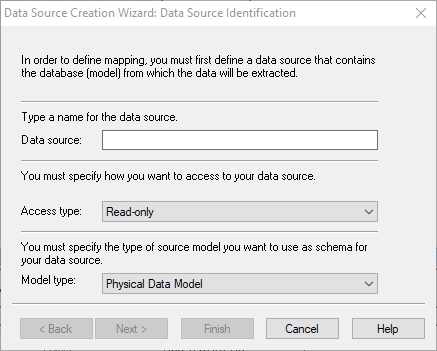
- In
Access type, selectRead Onlymapping. This means the dataflow is treated as a one-way-direction from source to target. - Select as
Modeltype:Physical Data Model. - Press Next.
- Select the source model you want to use.
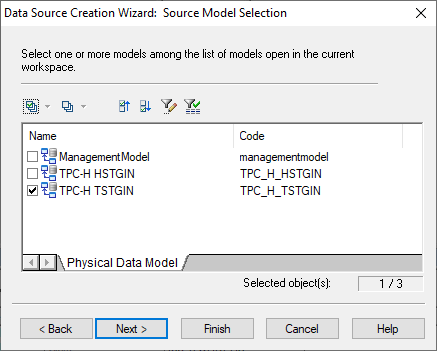
- Press Next.
- Choose if you want to use
Default Mappingsor Not.
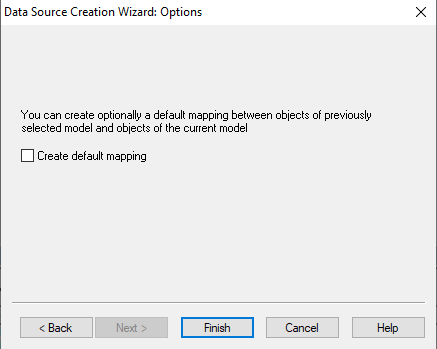
- Press Finish.
Make sure the properties of your mapping are read only
The default status is read/write, which will result in an error when importing the metadata into i-refactory.
When to use Default Mappings
The Mapping Editor can execute the mapping process for you when column names or codes of the source model are aligned with the target model. In this scenario, entity mappings are automatically generated.