Upgrade to i-refactory modeller v3.0.0
Prerequistes
- Optionally save your workspace in Powerdesigner
- Quit Powerdesigner
Upgrade
Copy the contents of i-refactory-modeller folder from the install media to your install location.
Restart Powerdesigner.
Model templates
Instead of creating a new physical model from scratch and apply default settings you should from now on use the model templates when creating physical models.
We've packaged this release with 5 model templates which can be found in the folder model_templates:
- A template for a technical staging model.
- A template for a logical validation model.
- A template for a central facts model.
- A template for a central facts concept integration model.
- A template for a generic data access model.
The templates are preconfigured to have:
- The proper extensions.
- Some standard settings regarding naming conventions.
- Predefined values for extended properties.
- Standard look and feel for some objects.
- Database generation settings ( via settings sets).
To enable the use of model templates in Powerdesigner change the following setting:
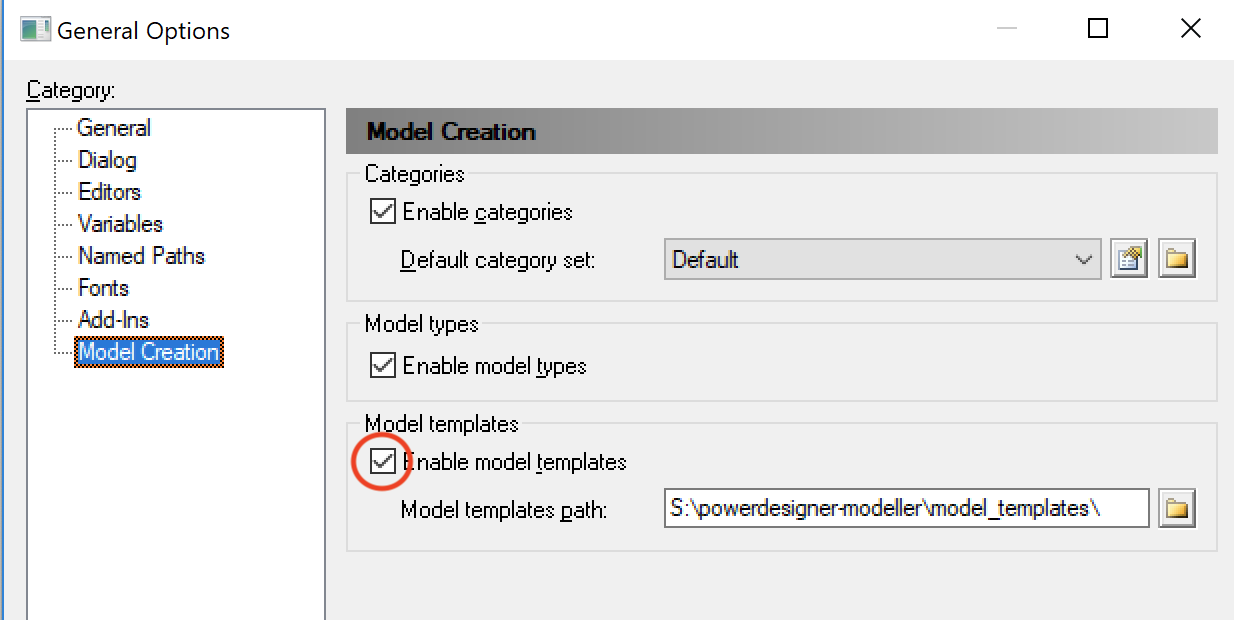
Set the path to your shared location where modellers can use the template models.
Physical delete support
In each central facts model the anchor entity types will be extended with 2 additional properties: acm_physically_removed_ind and acm_physically_removed_by.
If you open a workspace, then open the management model and then open a central facts model the properties will be automatically added to your model.
If for some reason an anchor is not extended then it's most likely that the anchor is either not a replica from the management model or the replication settings are incorrect.
Check for not replicated tables
One of our model checks ensures that each table in a central facts model is a replica of an appropriate table in the management model.
You can get a list of all violations for this model check:
- Execute
Model Check - Look for errors related to the model check:
i-refact [UAM Modelling] -Table is not a replica ( either from the management model or from a supertype )
There is no easy fix for this problem. Once an object is created without the use of replication it cannot be changed or set to replicated anymore.
Please check with one of our consultants how to fix replication issues.
Settings set
In Powerdesigner when generating DDL you can change the behaviour for which objects to generate DDL.
You could also save these setting in a settings set file for reuse.
For each of our technical model types we've created these predefined settings. Each physical model type is assigned to proper settings set template.
However, if we change the template these changes are not automatically reflected in the model.
In this release we changed the settings set for a technical model. The DDL for creating indexes is now generated if you create an index on a table.
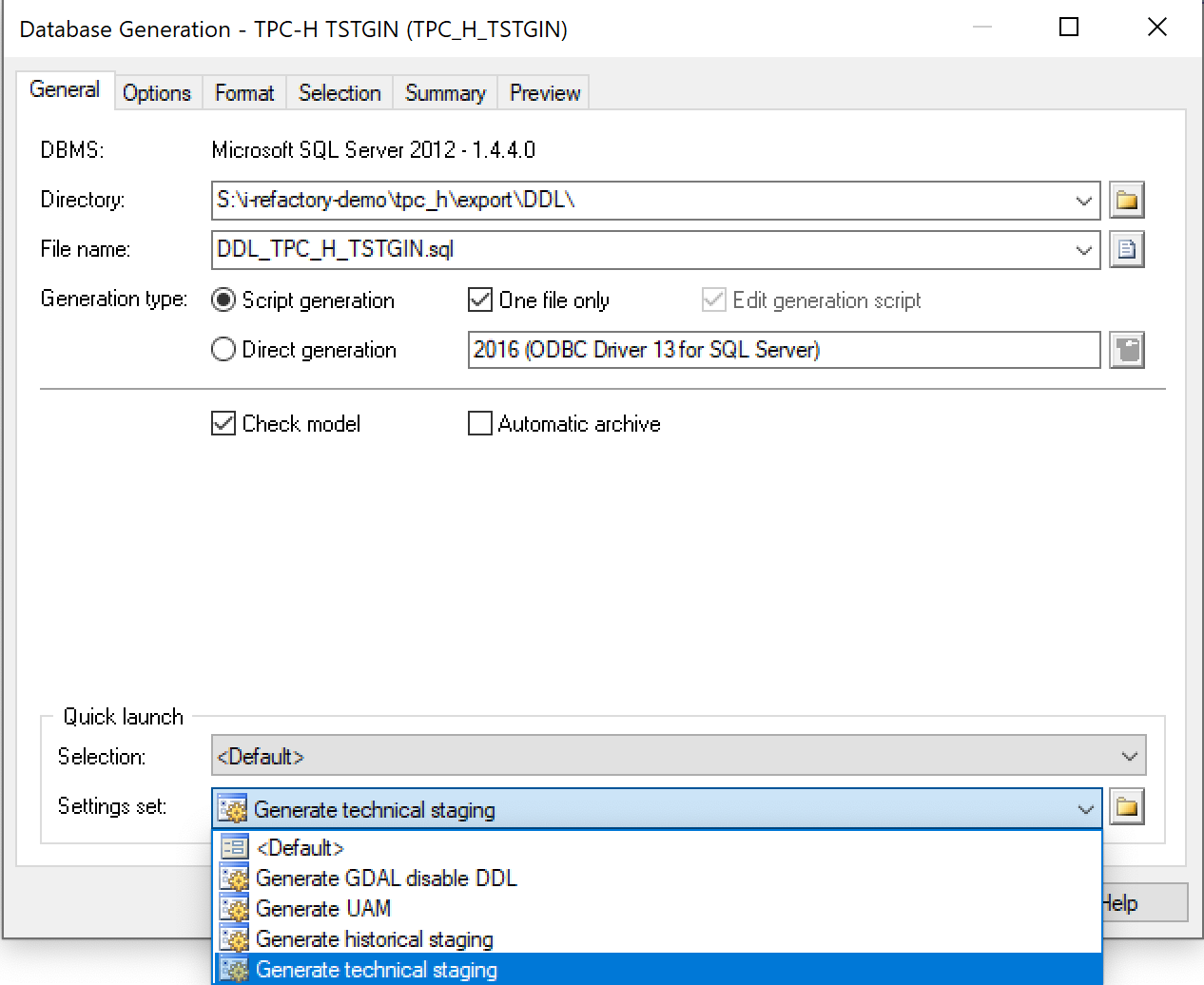
To active the changed template:
- Menu -> database -> generate database.
- Powerdesigner will show the template as
modified. - From the dropdown choose
General technical stagingand clickapply
Change domain
When the metadata for a generic data access model is imported we generate several views, stored procedures, ... amongst one of them to allow for transactional writes to the fact store.
From this release on we now support the ability to physically delete context in the fact store.
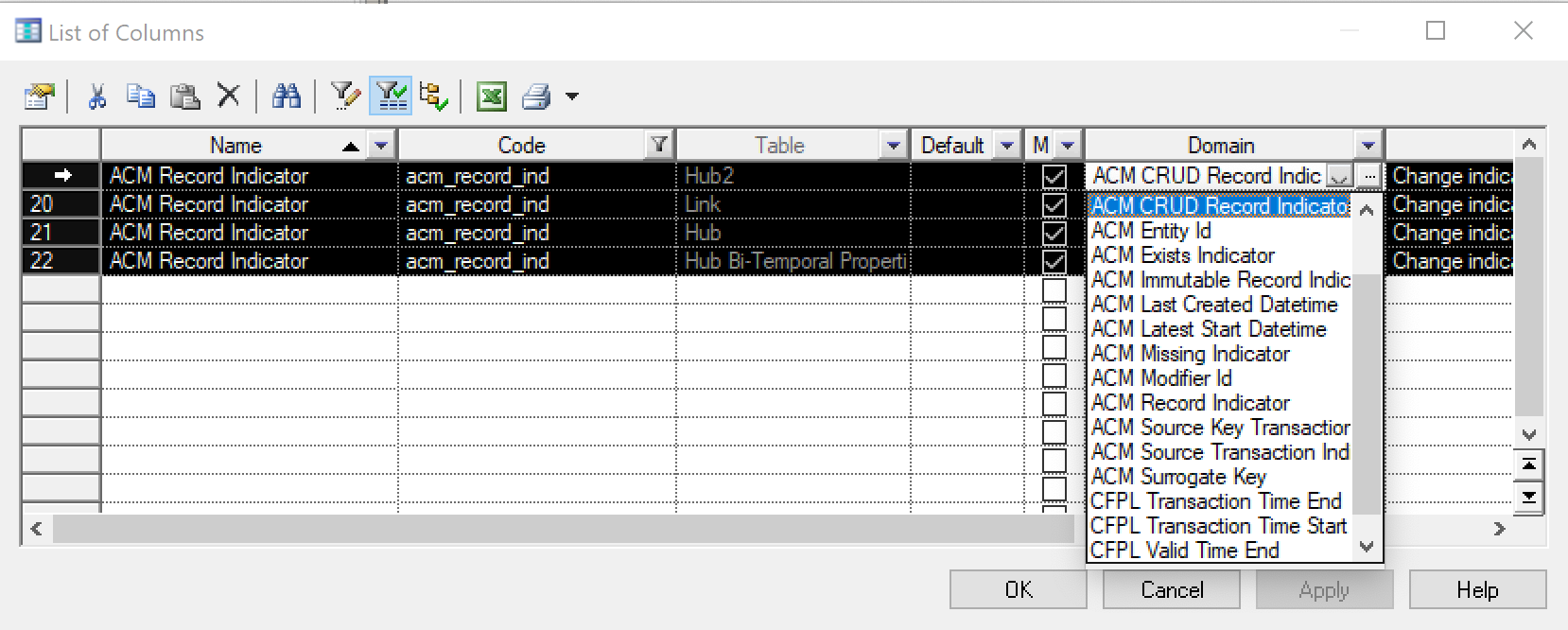
This requires however a change in the domain for the attribute acm_record_ind.
To change this domain in your Powerdesigner Generic Data Access model:
- Create a list of columns.
- Filter this list of columns such that only the column
acm_record_indis shown. - Select the full list.
- Change the domain of the column by select the value
ACM CRUD Record Indicatorfrom the dropdown list. - Click apply.