Create Business Rule Helpers
In this section you can find how to create a business rule helper in a central facts model.
What is a Business Rule Helper?
- You can use a business rule helper in the central facts model if you want to make calculation and want to keep a transaction history of the results of these calculation.
- A business rule helper is essentially a view on the UAM tables.
Based on data available in the Central Facts Layer, new facts can be created or derived using a business rule helper. These newly created facts are treated in the same way as as other facts within the central facts model.
A business rule helper is essentially a view on the UAM tables. You use the existing entities from the central facts model as input and the results of the helper can be materialized in other UAM Entities, such as Anchors and Context.
It is also possible to build a helper based on an existing helper. If you do this, then you can make use of the option to cache the helper results as input for the next helper. This supports the functional decomposition of calculations.
Info
In the database, a Business Rule Helper is implemented as a separate UAM View defined on top of the referenced UAM Entities.
Create a Business Rule Helper
To create a business rule helper:
- Select the Anchors and Contexts relevant to define the input for the new business rule helper.
- Go to the Menu and click
Tools > i-refactory > Business Rules > Design from Selection.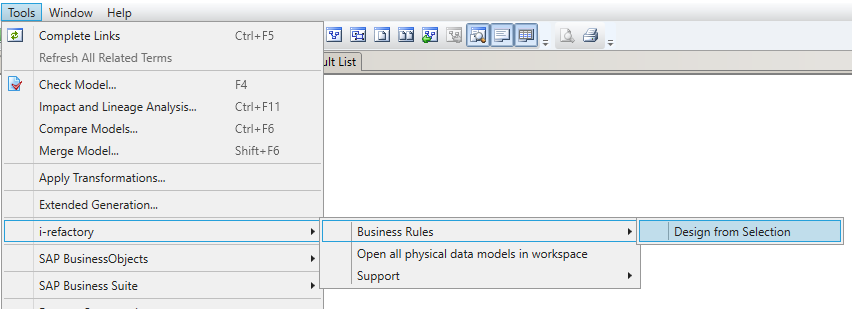
- Assign a 'Name' to your Design (the design itself will be thrown away later).
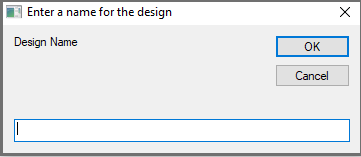
- A new tab with the 'Name' you've defined opens, it includes the selected Anchors and Contexts.
- Right click on the Context where you expect to start your query from.
Tip
Select multiple entities by holding down the Shift key on the keyboard and clicking the mouse on every entity you want to select.
- In the context menu, click on
i-refactory > Business Rule > Generate Business Rule starting from this table.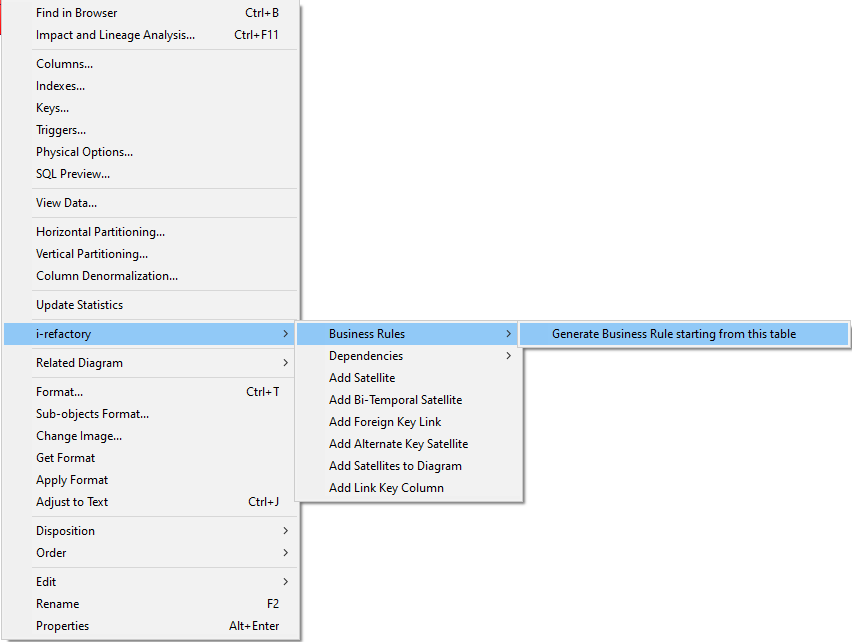
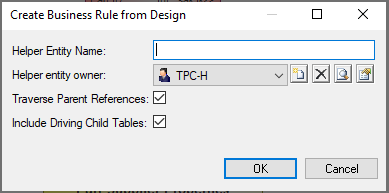
- Complete the information about the new helper:
Helper Entity Namethat uniquely identifies the Business Rule Helper.Helper Entity Owneris required, select the owner from the drop down list.Traverse Parent Referencesis optional, use this if all parent anchors and their context tables must be pre-joined in the query of the BR HelperInclude Driving Child Tablesis optional, use this if all dependent child anchors and their context must be pre-joined in the query of the Business Rule Helper
Warning
By default, a BR Helper query will be executed as a Full Load. As a consequence of the full load, all existing keys that are not returned by the BR Helper query will be logically deleted in the Central Facts Layer. If the BR Helper query does not return the complete set of keys of the anchor, it should be flagged as Delta.
Properties
A new Business Rule Helper is created with the following properties:
- ACM Start Datetime
acm_start_dt:- In the query this attribute has the value
@time_consistent_transaction_dt(the value of this parameter will be calculated by the engine in the runtime process)
- In the query this attribute has the value
- ACM Record Indicator
acm_record_indthat must have one of the values:N: indicates a new recordA: indicates an appended recordR: indicates a removed record
- Business Keys of the involved Anchors
- In the query, the business keys of all parent anchors are in the join path
- Surrogate Keys of the involved Anchors: optional, just for reference
- Context Columns: if you've selected a Context as your starting point
Minimum requirements
The minimum requirements for a Business Rule Helper are:
ACM Start Datetimeis included in the Column listACM Record Indicatoris included in the Column list- You've selected one or more Business Keys as Primary Key
- You've defined the expected output Columns with the exact Code as you defined the Column in your query
- All Columns are stereotyped
- The query syntax is correct
Generated query
To see the generated query:
- Double click on the BR Helper
- The Helper Business Properties appears.
- Click on the tab
IR Derived Entity
In the generated query you'll see that the attributes of all parent anchors of the selected table are pre-joined.
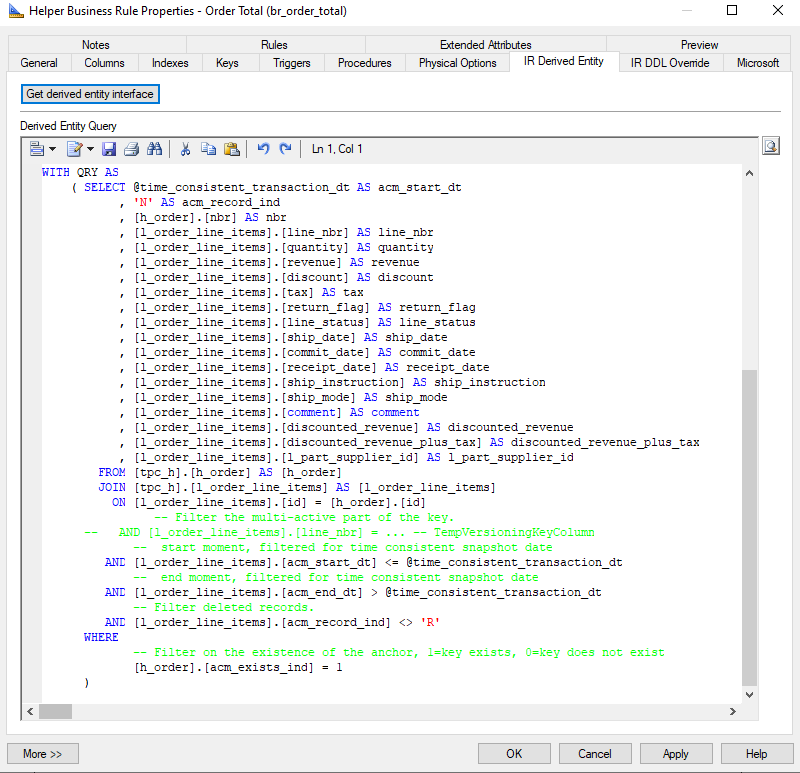
The generated or manually created query should be constructed using a WITH clause as in the example below:
WITH QRY AS ( SELECT @time_consistent_transaction_dt as acm_start_dt
    , 'N' as acm_record_ind
    , <rest of columns>
    FROM <tables>
    )
By default the query filters the anchor tables on
- existence = True
- and the context tables on the time consistent transaction date
You can adjust these filters and query if necessary.
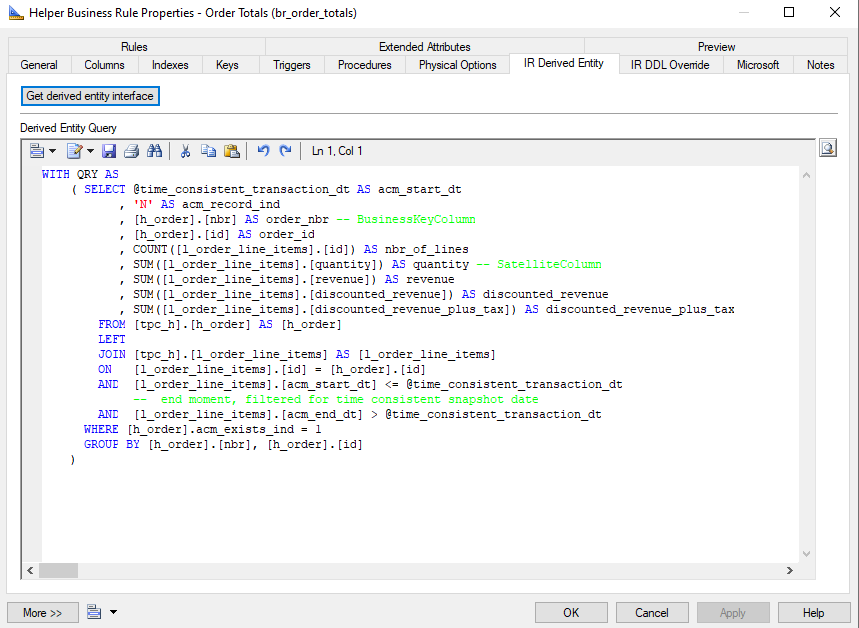
In the figure below, the generated query of Order Total is adjusted to calculate the order total.
Info
A BR Helper is processed as if it is a source table from the logical validation layer. This means that the BR Helper must have the full business key of the concept as its primary key, just like a regular logical validation model entity.
Mappings
Additionally, a BR Helper object requires two different types of mappings:
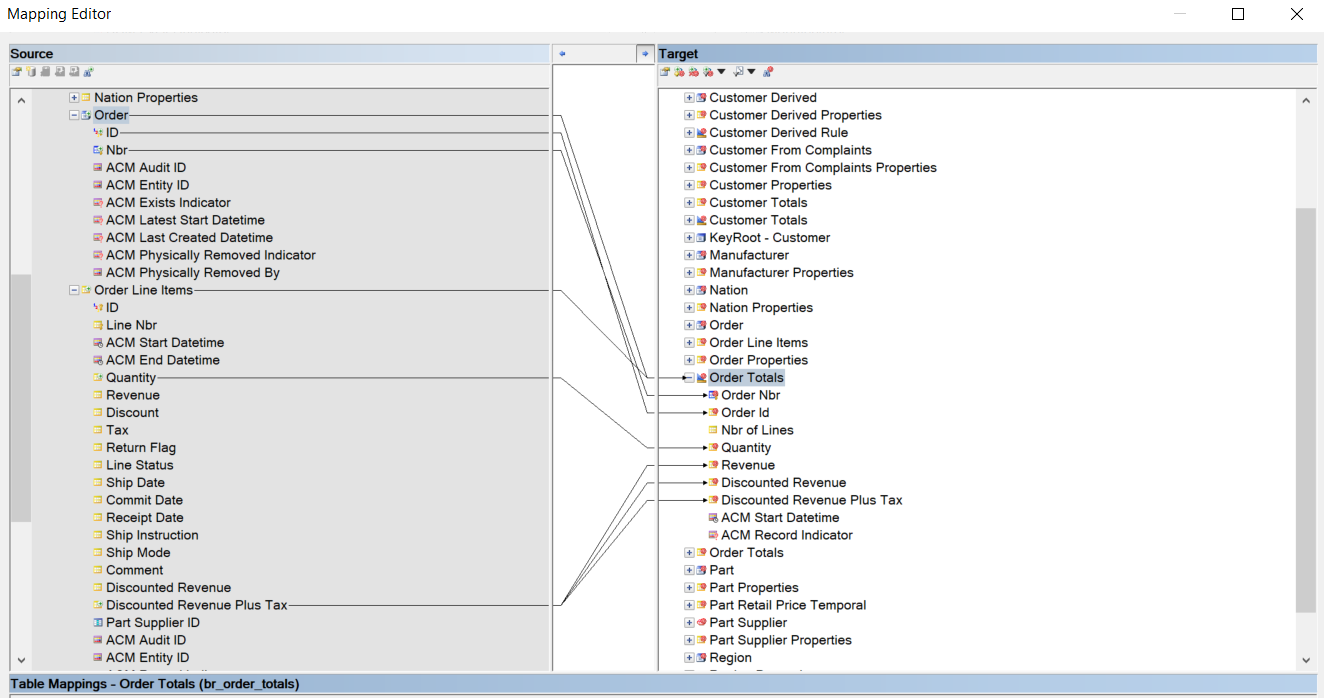
- The mappings from the tables referenced in the BR Helper query to the BR Helper object (dependency mappings).
- The mappings from the BR Helper object to the target UAM table where the results of the BR Helper will be materialized.
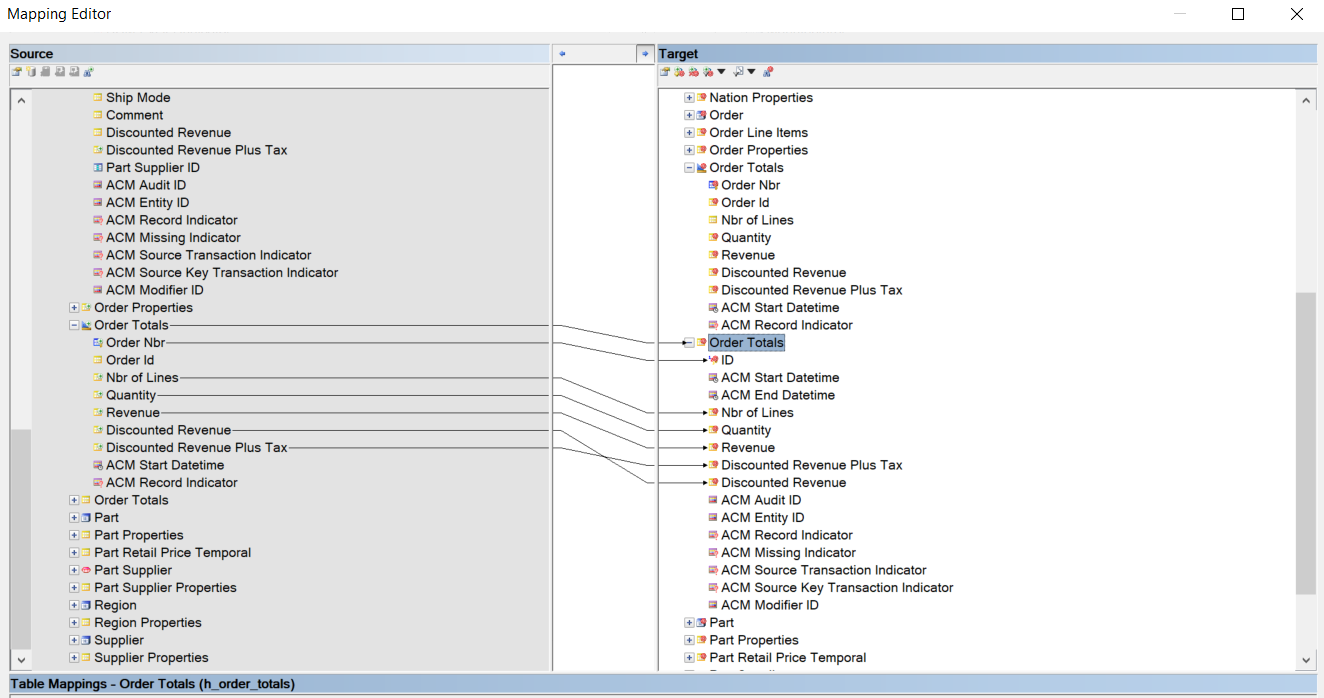
The dependency mappings are created automatically when you use the option 'Generate BR Helper starting from this table' menu option. Also for every dependency mapping a 'traceability link' is created in the diagram. However, if the BR Helper query is manually changed, the dependency mappings must be manually updated as well. This means that if an extra table is joined in the query, an extra dependency mapping from this table must be created as well. And if a table is removed from the query, the dependency mapping from this table can be removed as well.
Warning
There must be dependency mappings from all source tables that are used in the BR Helper query to the BR Helper. This will make sure that all source data of the BR Helper is processed before the BR Helper query is executed. If one of the dependency mappings is missing, the BR Helper query may give unexpected results.
Info
Although it is good practice to create dependency mappings on the column level, they are only required on the table level.
Delta Helper
Use a Delta helper if the BR Helper query does not return the complete set of keys of the anchor.
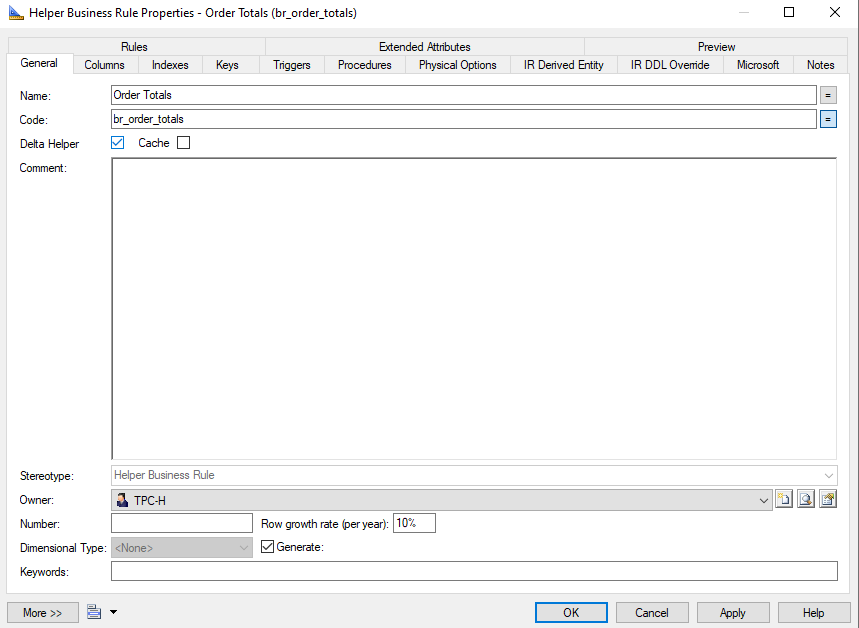
If the Delta flag is set, the BR Helper query will be executed as a Delta Load. In this case the query itself is responsible for calculating the proper N | A | R values for the acm_record_ind column. With a Delta BR Helper it is possible to delete existing keys, but then the records with acm_record_ind = R must be calculated by the BR Helper query.
Info
A Full Load business rule helper does essentially a FULL OUTER JOIN between the results of the query and the existing data. A Delta Load business rule helper does a LEFT OUTER JOIN between the results of the query and the existing data.
Caching of central facts business rule helpers
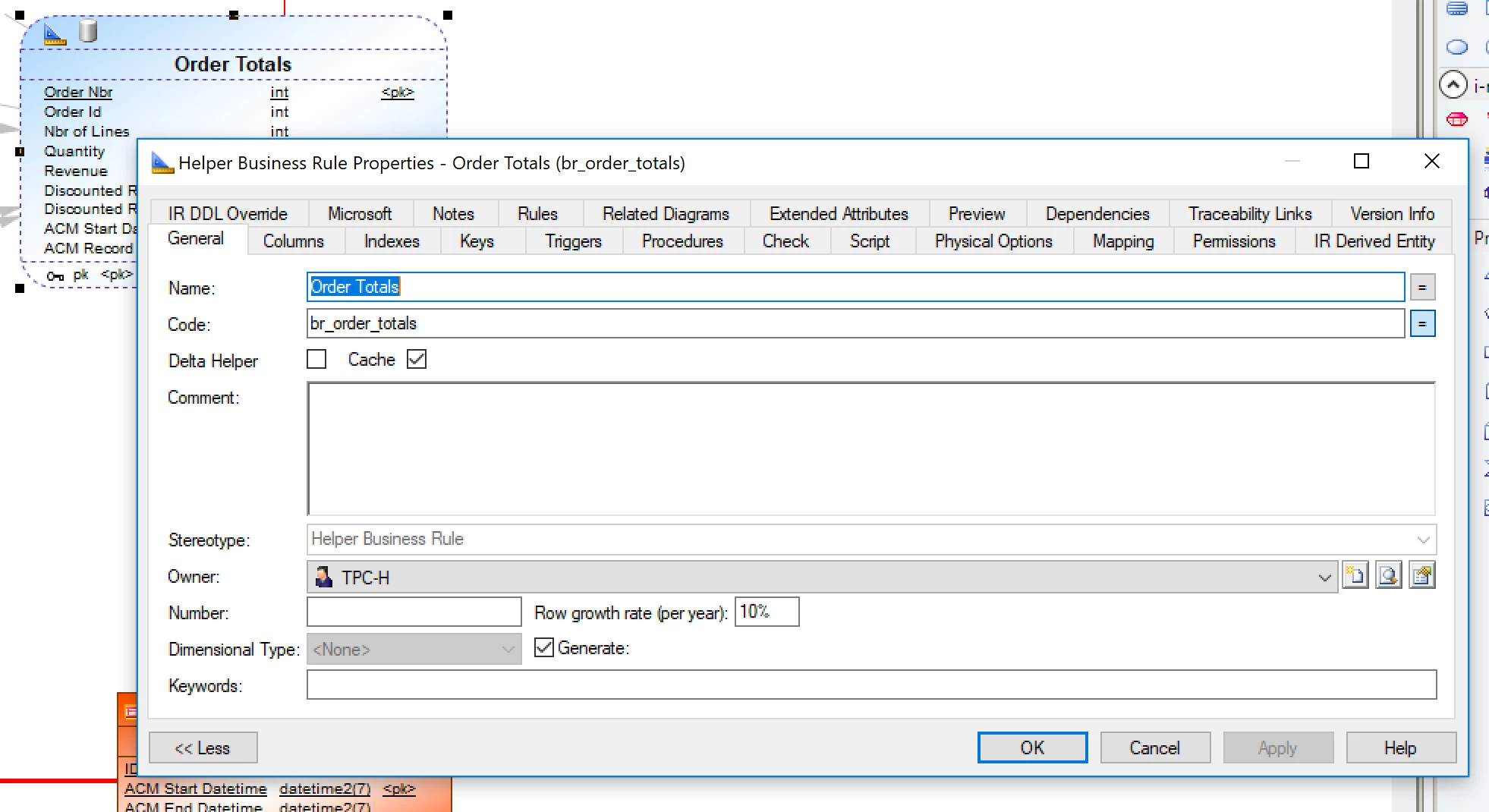
A business rule helper in the central facts model can be marked as a cached helper. Caching intermediate results enables reuse of precomputed derived facts and result in better throughput. Caching business rule helpers also aids in a more modular approach (functional decomposition) of complex business rules as the intermediate results can now be stored and reused.
To cache the results of a BR Helper query in the Central Facts Layer, set the Cache flag. This will create an auxiliary table in the database to store the current results of the helper entity calculations and the derived transaction time for the helper. This table can then be used in other helper entity calculations that use this data.
Transactional Consistent Filter
A Helper Entity is a calculation of facts given a set of Input Datasets. The calculation is automatically triggered by the i-refactory engine if it detects that one of the Input Datasets used in the Helper Entity are changed or delivered. Because the 'Fact Store' stores a temporal view of all facts delivered over time, the calculation of Derived Datasets needs to take into account temporal consistency as well.
Before the helper executes, i-refactory computes the transaction time for the Derived Datasets. There are three options to calculate the transaction time: LEAST | GREATEST | CURRENT TIME. If you need to ensure full consistency for derived facts - which may result in missed updates - then you should choose LEAST. If you need to ensure maximal accuracy of the derived facts - which may result in transaction time inconsistencies - then you should choose GREATEST. If Current Time is chosen the variable @time_consistent_transaction_dt will be set to the current time.
Info
If the calculated transaction time is less than or equal to the transaction time of the last time the helper was executed then i-refactory skips the execution of the helper, otherwise the helper will be executed.
You should always filter your context in the query specification on a consistent point in time as shown in the example query below.
WITH QRY AS
    ( SELECT @time_consistent_transaction_dt AS acm_start_dt
        , 'N' AS acm_record_ind
        , [h_order].[nbr] AS order_nbr
        , [h_order].[id] AS order_id
        , COUNT([l_order_line_items].[id]) AS nbr_of_lines
        , SUM([l_order_line_items].[quantity]) AS quantity
        , SUM([l_order_line_items].[revenue]) AS revenue
        , SUM([l_order_line_items].[discounted_revenue]) AS discounted_revenue
        , SUM([l_order_line_items].[discounted_revenue_plus_tax]) AS discounted_revenue_plus_tax
        FROM [tpc_h].[h_order] AS [h_order]
        LEFT
        JOIN [tpc_h].[l_order_line_items] AS [l_order_line_items]
        ON   [l_order_line_items].[id] = [h_order].[id]
        AND  [l_order_line_items].[acm_start_dt] <= @time_consistent_transaction_dt
        AND  [l_order_line_items].[acm_end_dt] > @time_consistent_transaction_dt
    WHERE [h_order].acm_exists_ind = 1
    GROUP BY [h_order].[nbr], [h_order].[id]
    )
Example of how to create a business rule helper
Suppose you've defined your central facts model as a representation of a computer filesystem.
A server has one or more drives, and each drive contains a number of root folders. Each root folder may contain subfolders, each of which may contain subfolders of their own, etc. Each folder may also contain one or more files. Each file has a size in bytes and a last modified date.
Now we want to calculate the total size in bytes of (all files in) a folder and the last modified date of (any file in) a folder. Moreover, we also want to calculate the total size of (all folders on) a drive and the last modified date of (any folder on) a drive.
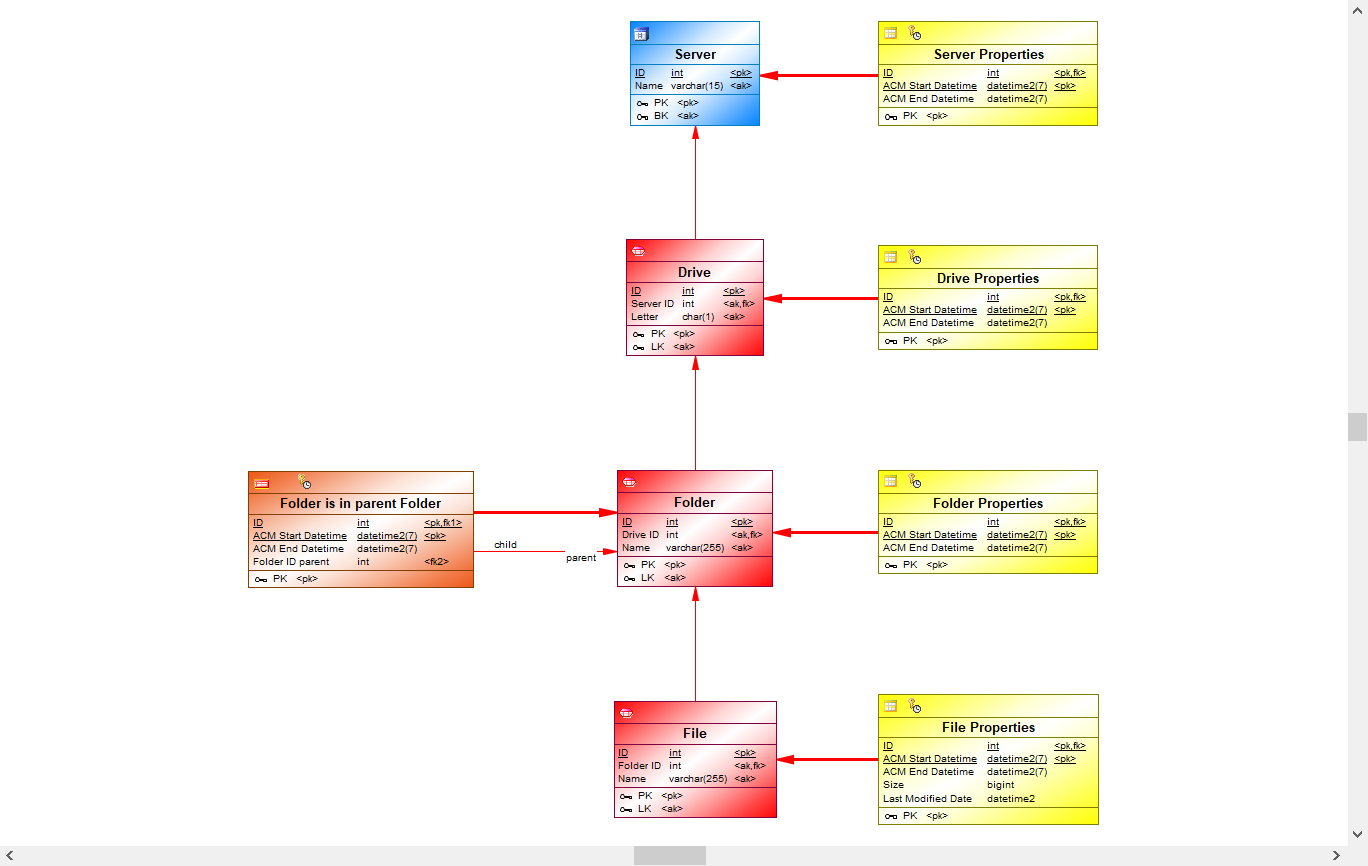
To do this, we select the File Properties Satellite table, right click and select i-refactory - Business Rules - Generate a Business Rule Helper starting from this table. The following dialog now appears:
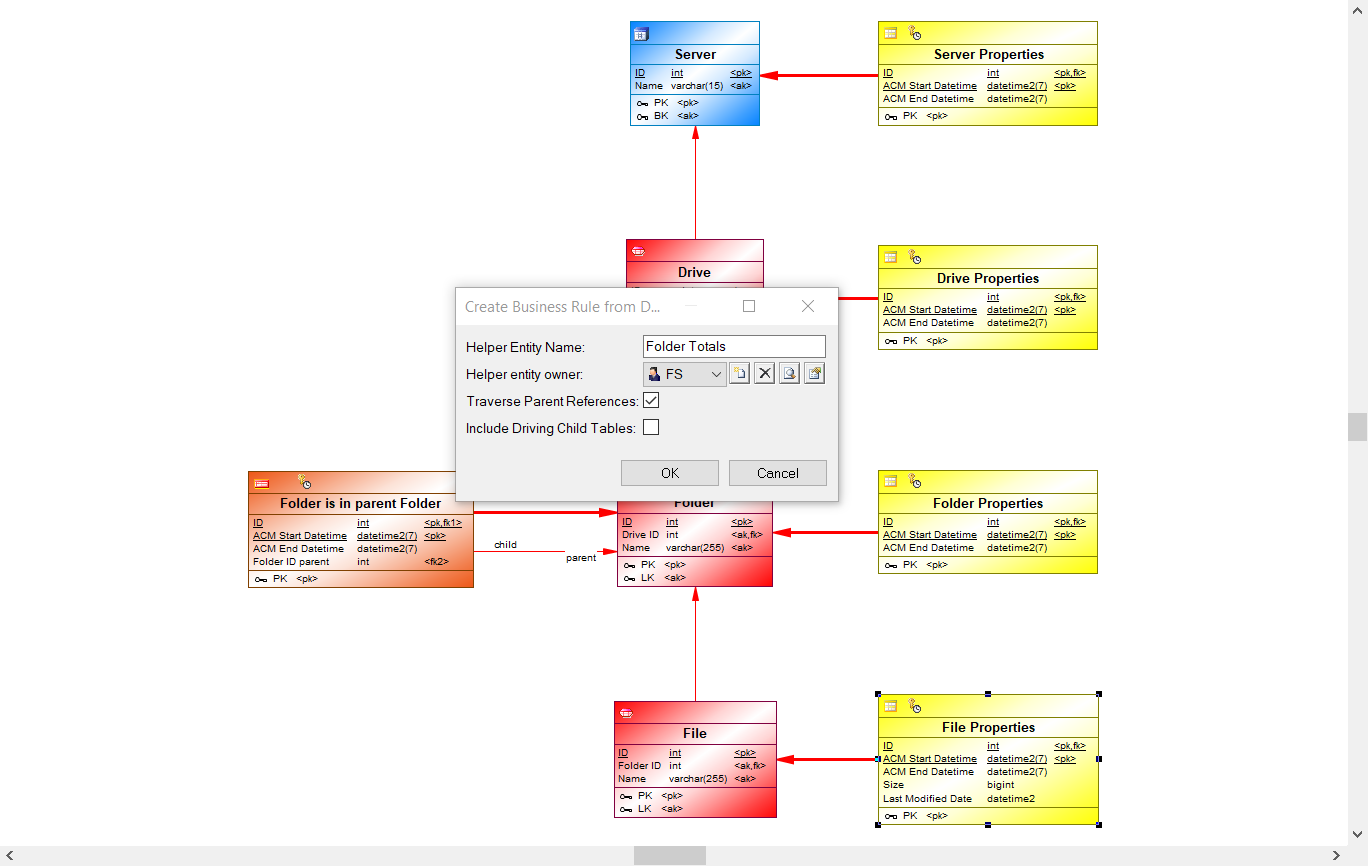
This will define a BR Helper object with pre-defined columns and generated query that can be modified afterwards. The following information must be provided:
- Helper Entity name: the name of the BR Helper object and database view
- Helper Entity owner: the schema in which the database view will be deployed (cannot be left empty)
- Traverse Parent References Yes/No: if Yes then all parent anchors and their context tables will be pre-joined in the query of the BR Helper
- Including Driving Child Tables Yes/No: if Yes then all dependent child anchors will be pre-joined in the query of the BR Helper
We now click OK. This will create the BR Helper object as well as the dependencies with the source tables that are used in the query (displayed as PowerDesigner Traceability Links):
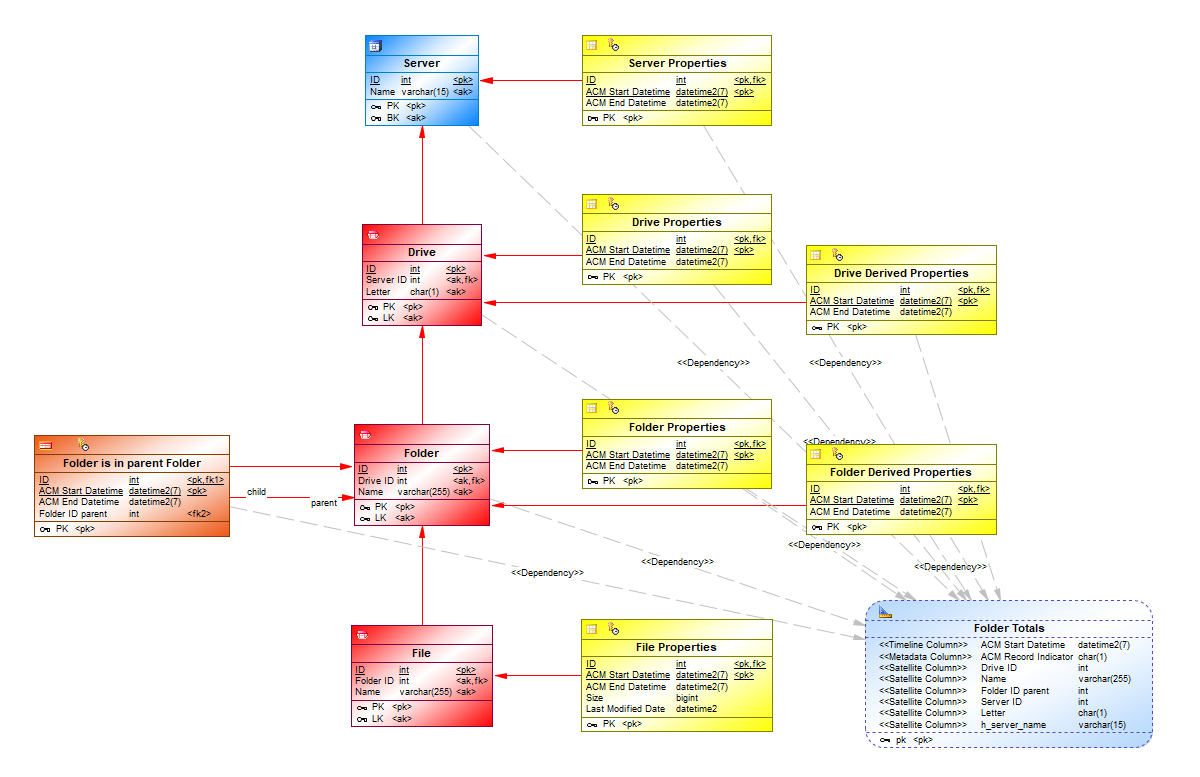
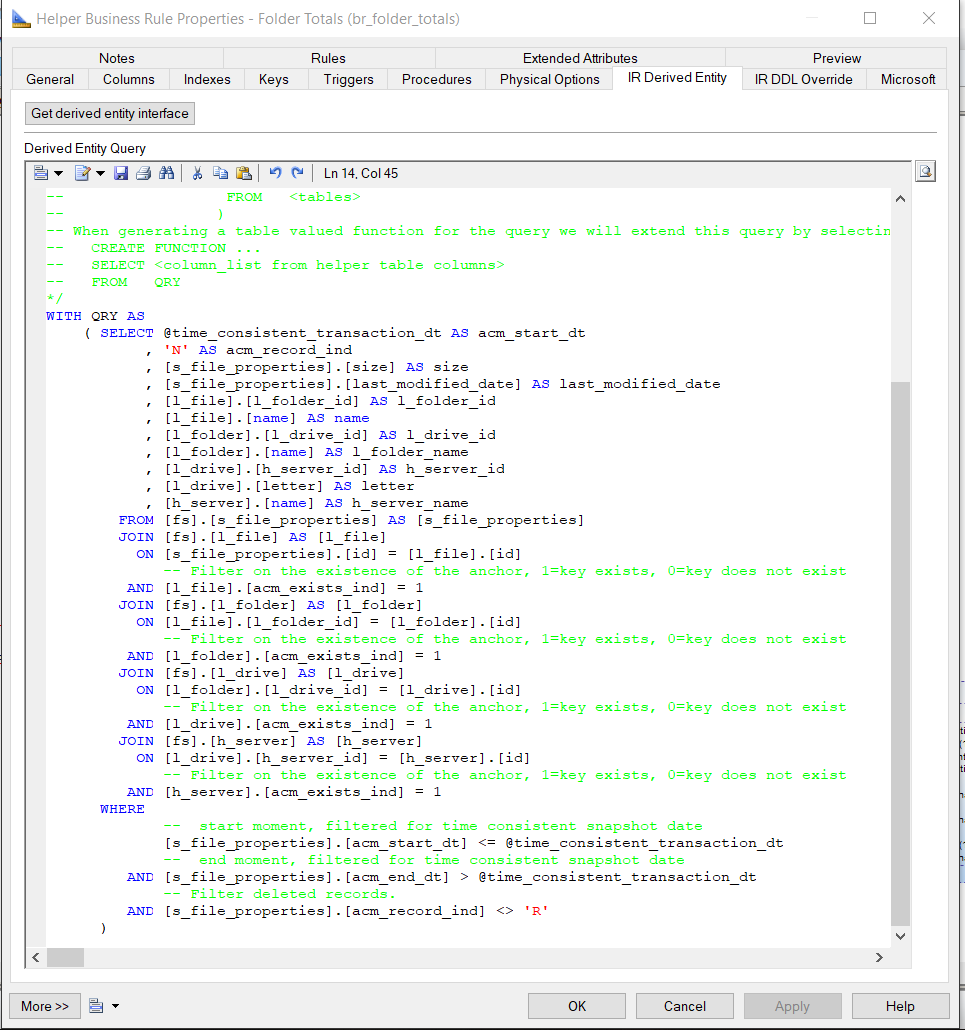
When we select the properties of the BR Helper and click on the Derived Entity tab, we see that a query is generated in which all parent anchors of the selected table (File Properties) are pre-joined:
The query generated or manually created should be constructed with a WITH clause as in the example below:
    WITH QRY AS ( SELECT @time_consistent_transaction_dt as acm_start_dt
    , 'N' as acm_record_ind
    , <rest of columns>
    FROM <tables>
    )
By default the query filters the anchor tables on existence = True and the context tables on the time consistent transaction date (adjust these filters when necessary). When we look at the column list (or the select clause of the query) we see that our BR Helper object has the following pre-defined columns:
- A column
acm_start_dtwith value @time_consistent_transaction_dt(the value of this parameter will be calculated by the engine in the runtime process) - A column
acm_record_indthat must have one of the values: N(ew) | A(ppended) | R(emoved) - The Business Key columns of all parent anchors in the join path: File Name, Folder Name, Drive Letter, Server Name (note that the Link Reference columns
Folder ID,Drive ID,Server IDare obsolete because they are not part of the business key) - The Satellite columns of the starting table (Size, Last Modified Date)
A BR Helper is processed as if it were a source entity from the logical validaton model. This means that the BR Helper column interface must have the full business key of the concept as its primary key, just like a regular logical validation entity.
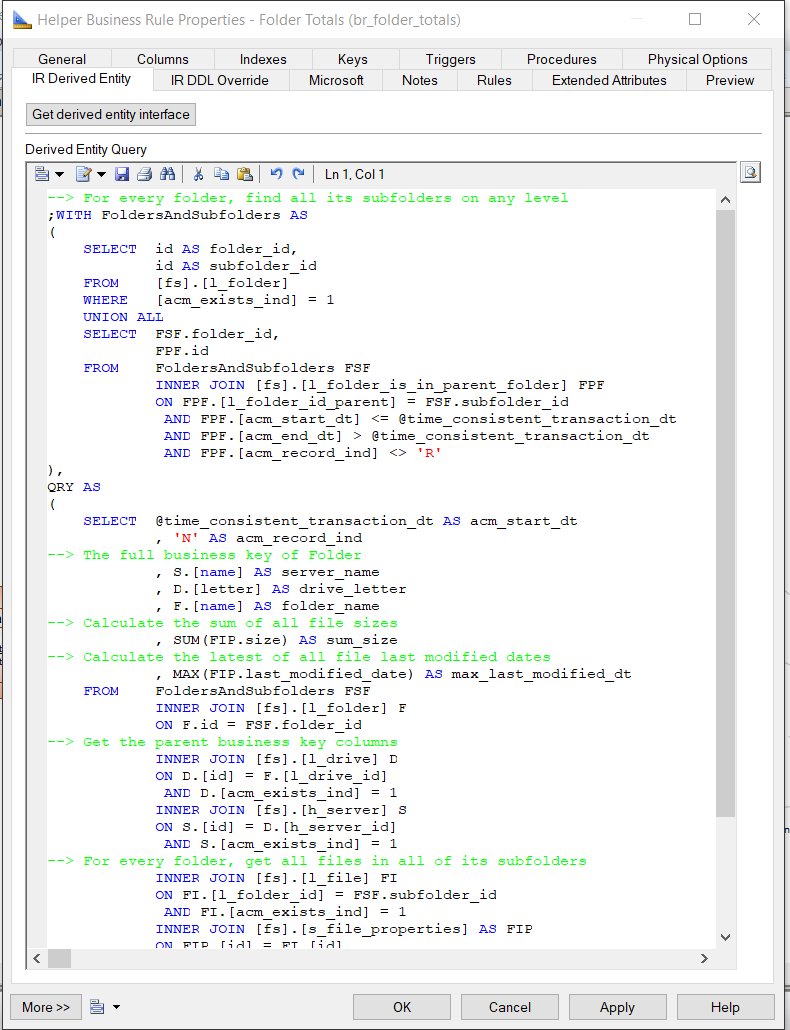
We will now modify the generated query for our purposes, namely to calculate the total size and the latest modified date of a folder. These are derived properties of Folder, so we need to select the business of key of Folder: Server Name, Drive Letter, Folder Name, and set this as the primary key of the BR Helper object. Because we need to find all files in a folder including all its subfolders, we use a recursive Common Table Expression (CTE) to select all subfolders of a folder on any level. Then we can aggregate over all files in these folders and calculate the sum of the file sizes and the maximum of the last modified dates of the files. If the BR Helper query uses one or more CTEs in its definition, we must make sure that it returns QRY as its last CTE.
Additionally, a BR Helper object requires two different types of mappings:
- The mappings from the tables referenced in the BR Helper query to the BR Helper object (dependency mappings)
- The mappings from the BR Helper object to the target central facts model entity where the results of the BR Helper will be materialized
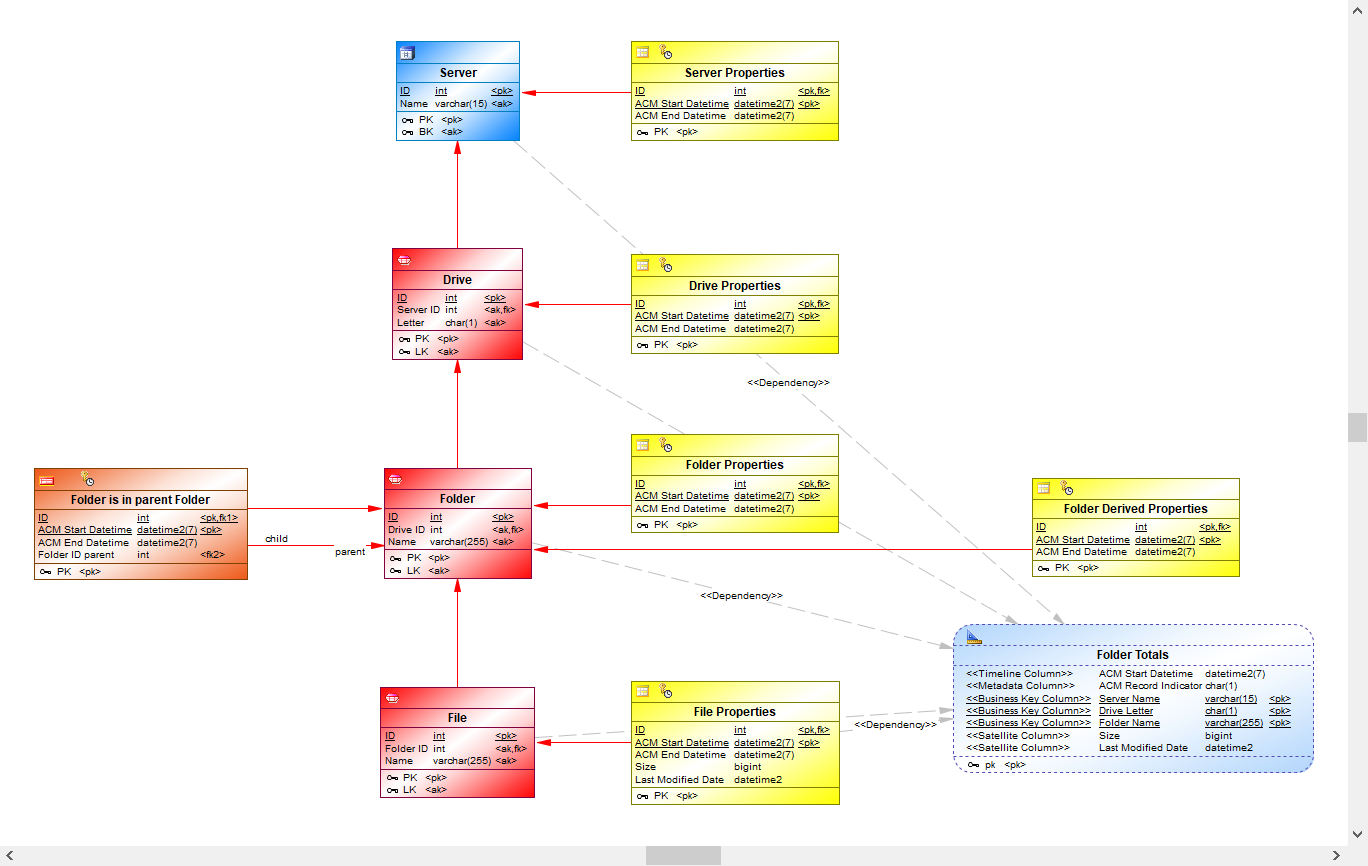
The dependency mappings are created automatically when using the Generate BR Helper starting from this table menu option. Also for every dependency mapping a Traceability Link is created in the diagram. However, if the BR Helper query is manually changed the dependency mappings must be manually updated as well. This means that if an extra table is joined in the query, an extra dependency mapping from this table must be created as well. And if a table is removed from the query, the dependency mapping from this table can be removed as well. In our example we use the FK Link Folder is in parent Folder in the recursive CTE part, and hence we have to manually add the dependency mapping from this table.
Warning
There must be dependency mappings from all source tables that are used in the BR Helper query to the BR Helper. This will make sure that all source data of the BR Helper is processed before the BR Helper query is executed. If one of the dependency mappings is missing, the BR Helper query may give unexpected results.
Info
Although it is good practice to create dependency mappings on the column level, they are only required on the table level.
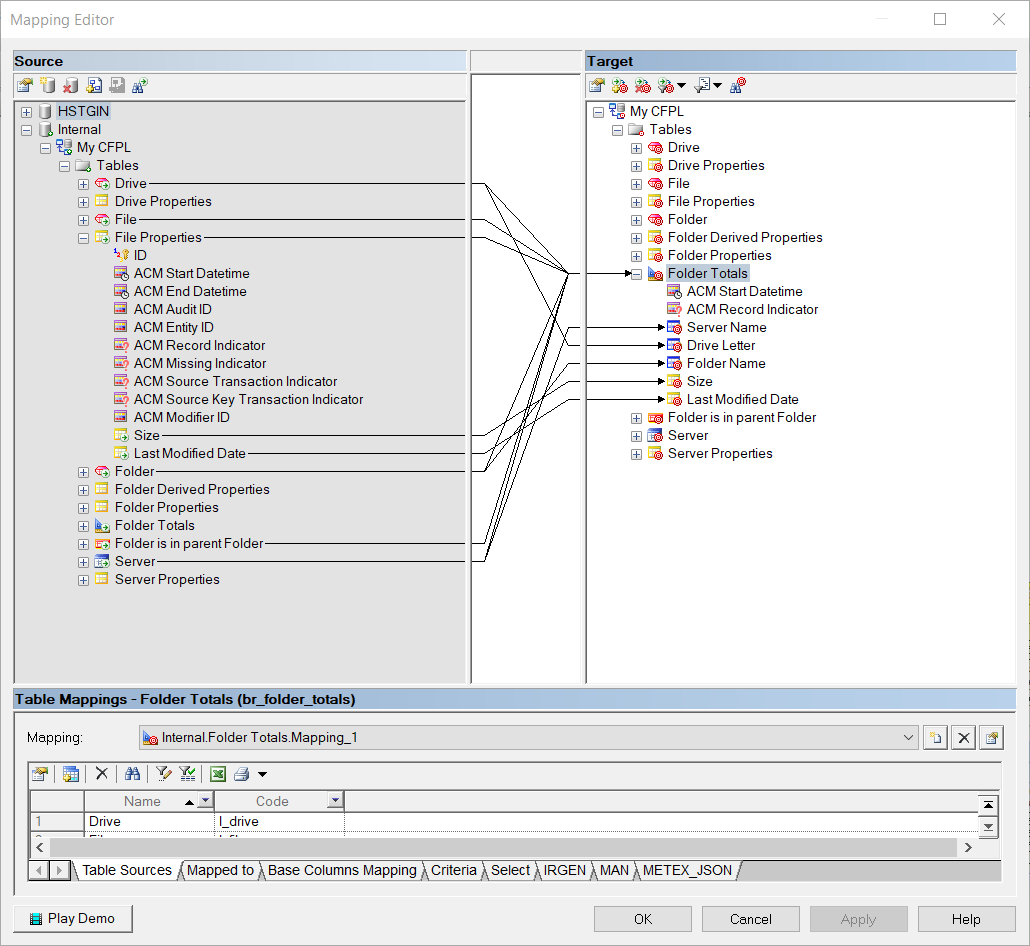
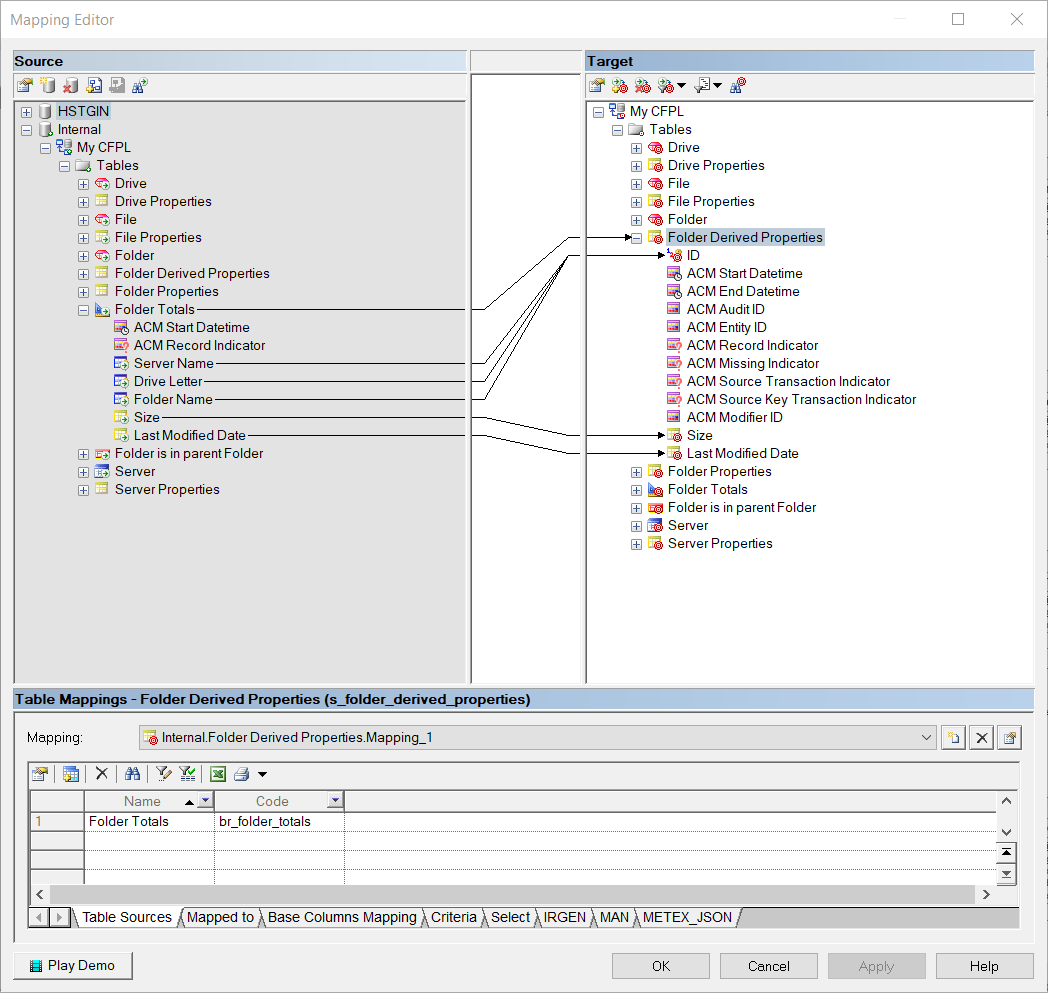
In our example we have created a new Satellite Folder Derived Properties to store the results of the calculations in the BR Helper. Because a BR Helper object acts as source table from the LVL, we need to map the columns from the BR Helper object to our new Satellite table. This can be done as follows:
- Open the Mapping Editor (go to the Tools menu and select Mapping Editor...)
- Under the Source data source Internal, select the BR Helper object Folder Totals
- Under the Target data source, select the Satellite Folder Derived Properties
- Map the business key columns of the BR Helper (Server Name, Drive Letter, Folder Name) to the id column of the Satellite
- Drag the calculated columns Size and Last Modified Date from the BR Helper to the Satellite, this will create the new Satellite columns as well as the mappings
Helpers on Helpers
We can use use the results of a BR Helper calculation in another BR Helper calculation. Now that we have calculated the total size and the latest modified date of a folder, we can go one step further and calculate the total size and the latest modified date of a drive.
To do this :
- Select the Folder Derived Properties Satellite table
- Create a second BR Helper object Drive Totals starting from this table
- In the query for this BR Helper object we aggregate over all folders in a drive and calculate the sum of the folder sizes and the maximum of the last modified dates of the folders
This results in the following diagram and BR Helper query:
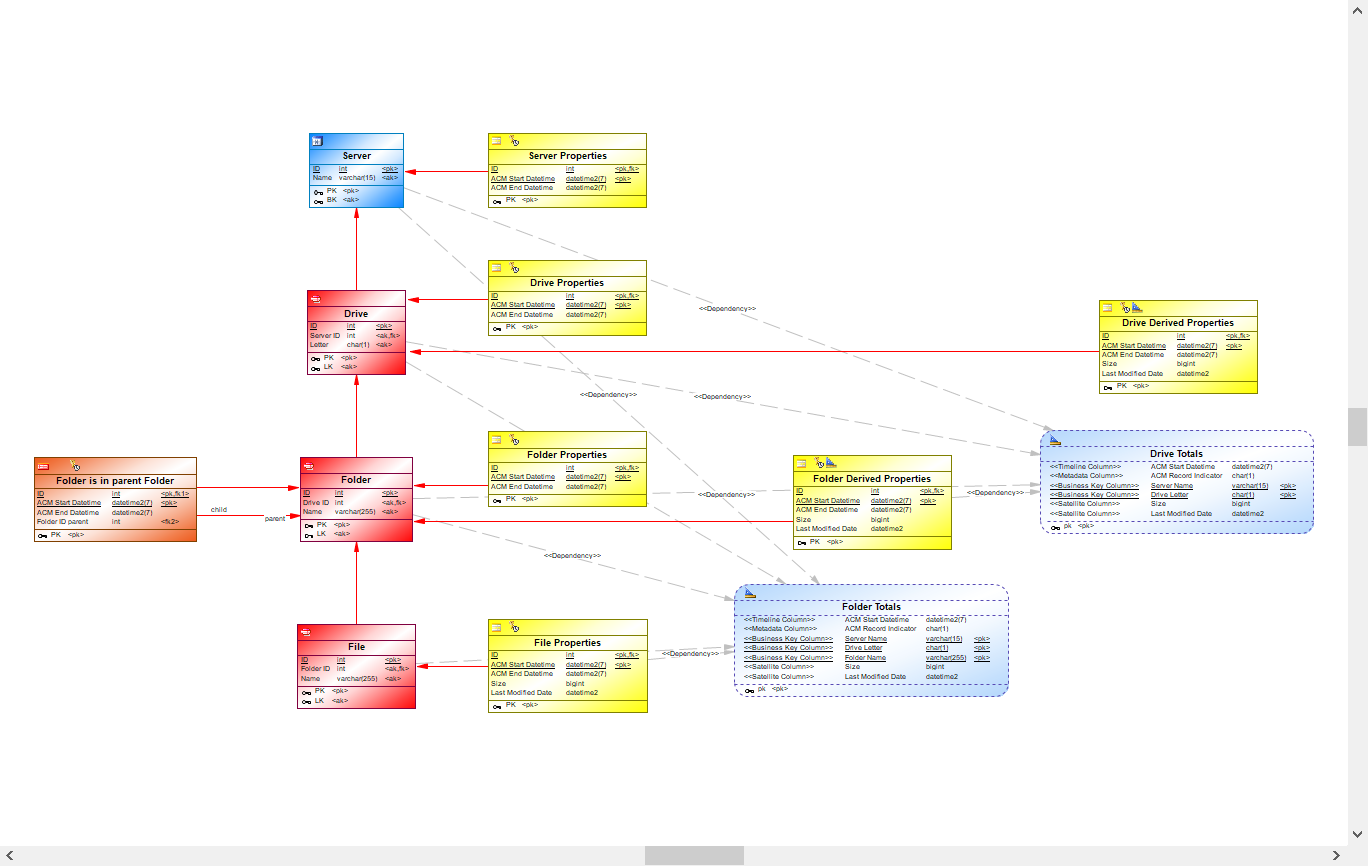
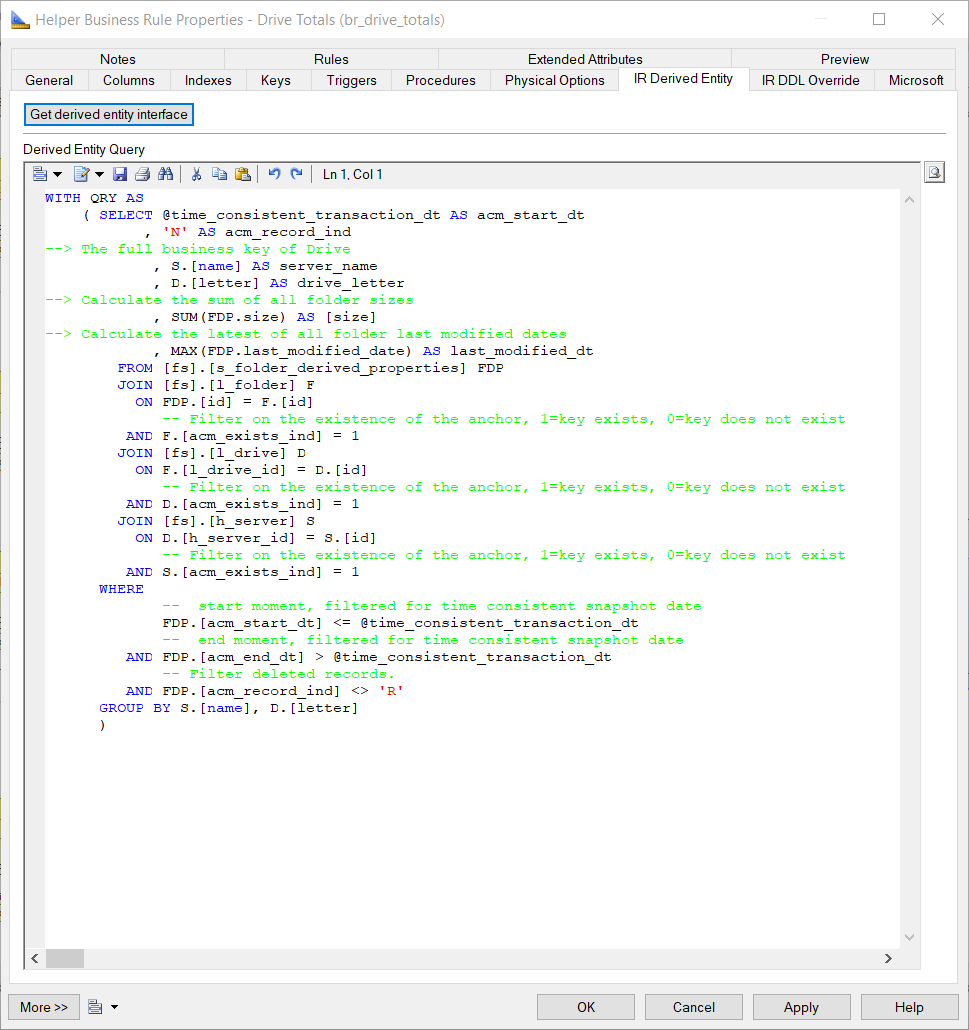
This completes the definition of the business rule calculations in our example UAM model.
To summarize, we took the following steps:
- Create a BR Helper Folder Totals starting from the File Properties table
- Modify the columns and the query to calculate the total size and the latest modified date of a folder
- Create a Satellite table Folder Derived Properties to store the results of the BR Helper Folder Totals query
- Make sure that all source tables of the BR Helper query are mapped to the BR Helper object
- Map the columns of the BR Helper object to the columns of the Folder Derived Properties satellite
- Create a BR Helper Drive Totals starting from the Folder Derived Properties table
- Modify the columns and the query to calculate the total size and the latest modified date of a drive
- Create a Satellite table Drive Derived Properties to store the results of the BR Helper Drive Totals query
- Make sure that all source tables of the BR Helper query are mapped to the BR Helper object
- Map the columns of the BR Helper object to the columns of the Drive Derived Properties satellite
We are now ready to deploy the model to the database. We note the following:
- A BR Helper object in the model will result in a view (or table valued function) in the database
- A mapping between a BR Helper object and a UAM table will result in an entity update from the BR Helper object (source) to the UAM table (target)
- The load query of the entity update will insert the results of the BR Helper view into the target table
- The @time_consistent_transaction_dt parameter will be calculated during the runtime process using the dependency mappings and the Least / Greatest setting
What's next?
When you have created business rule helpers:
- After you complete the model, please perform a Model Check.