Add attribute
Add attribute
After you create an entity, you can add one or more attributes to the new entity.
Warning
In the logical validation model, it is important to validate data, so you need to use strong data typing.
There are two ways to add an attribute to an entity:
- With the mapping editor
- Manually
Method 1: Add attributes with the mapping editor
The easiest way to add an attribute to an entity is to create a mapping from the technical model (source model) to the logical validation model (target model). For this, you can drag and drop attributes in the mapping editor. The main advantages of doing this are:
- The name, code, and datatype of the attribute are identical between the technical and the logical validation model.
- It is easy to check if you've implemented all the necessary attributes.
- The mapping between the source model (technical model) and target model (logical validation model) is already done.
Warning
If the name used in the technical model doesn't correspond to the business terms then you should rename the attribute in the logical validation model.
To add an attribute using the mapping editor:
- Open the Mapping Editor by clicking on
Tools > Mapping Editor. - Drag and drop the attributes from the source to the target model.
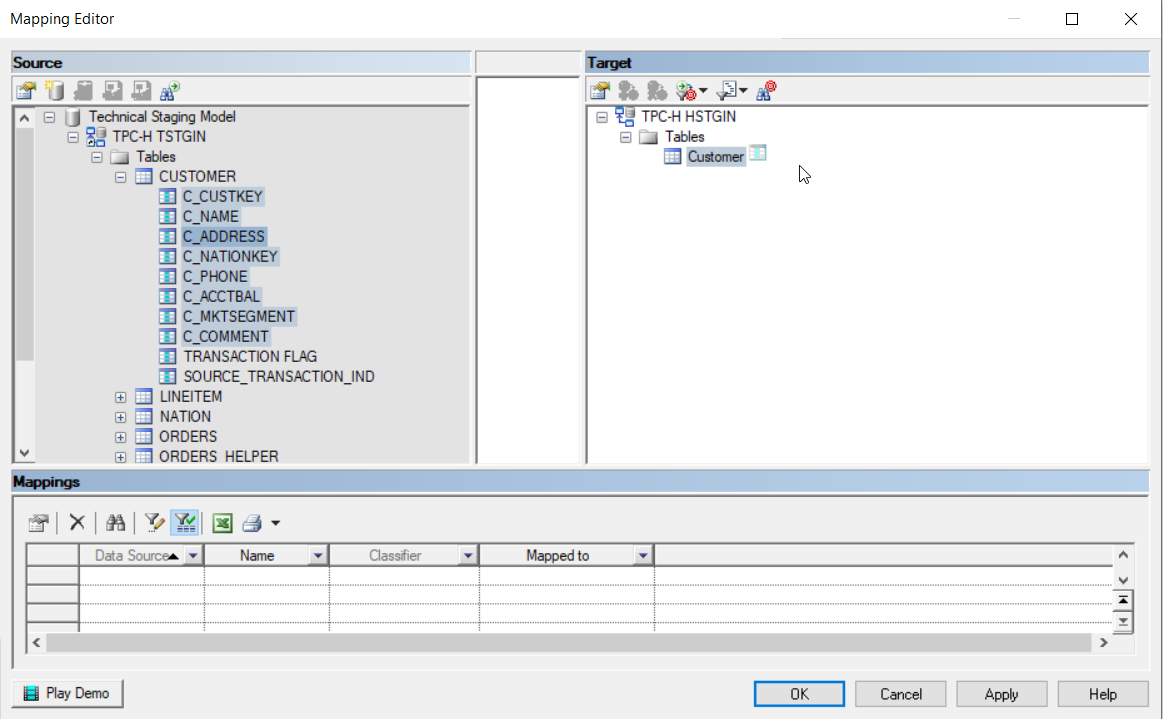
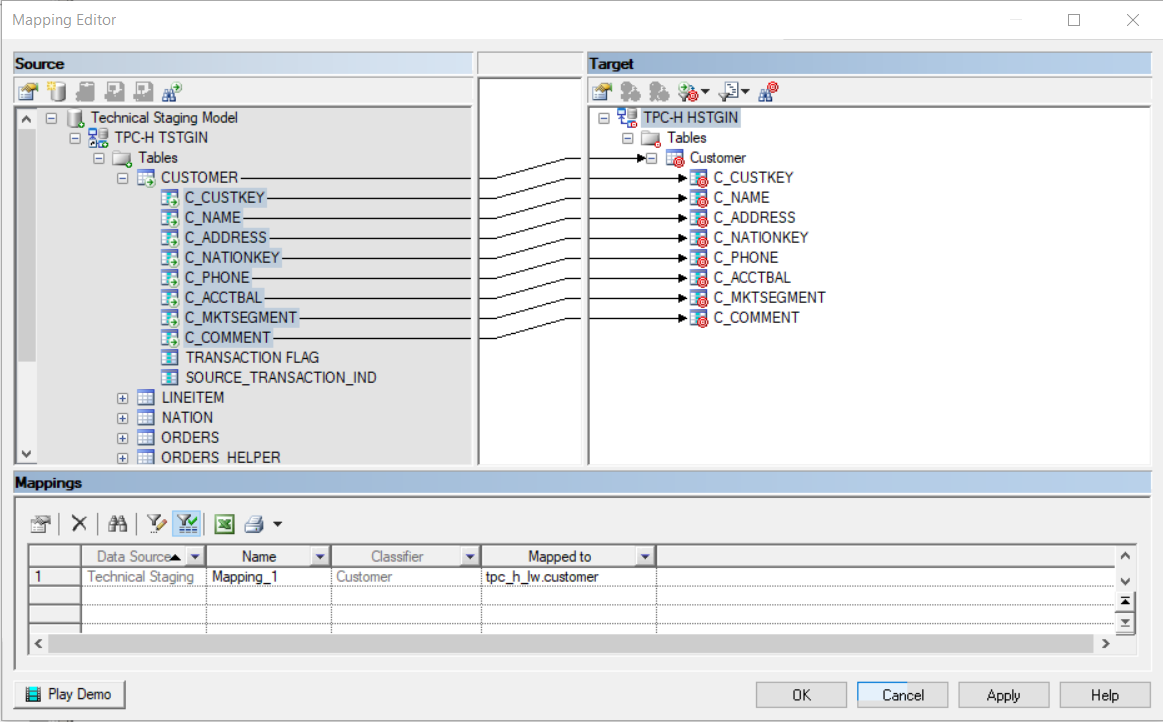
- If needed, you can edit the name, code, datatype, or other properties of the copied attributes.
Method 2: Add attributes manually
When the logical validation model has attributes that are different from the attributes in the technical model, you can also add an attribute manually.
To add an attribute manually:
- Double click on the entity.
- Click on the tab
Columns.
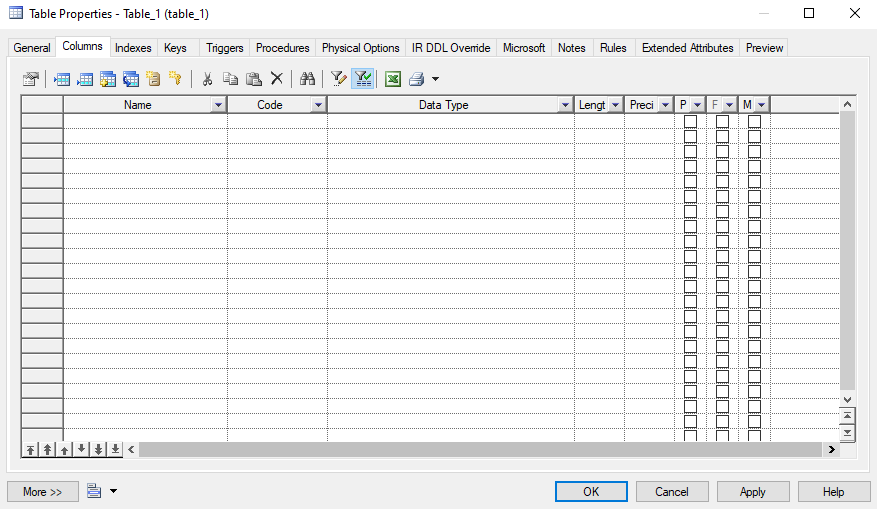
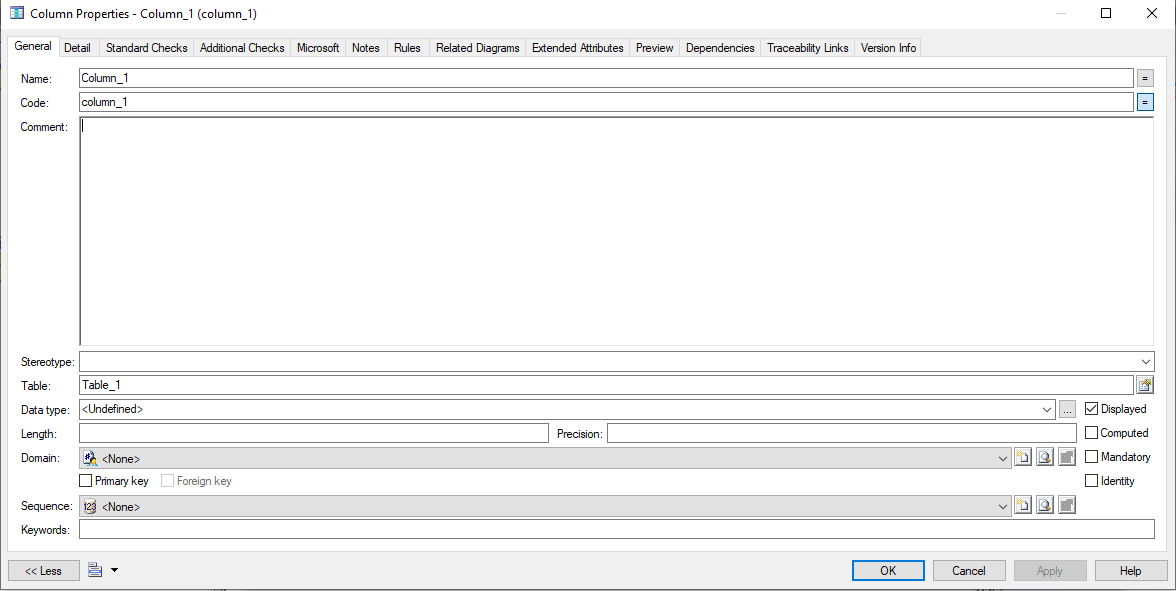
- Click in the empty row. A new column 'Column_1' appears.
- Change the
nameandcodeof the attribute to the name of the attribute as defined by the business terms. - Define the datatype of the attribute or assign a domain to the attribute.
- (Optional) Double click on the newly created Column. Add a description under
comment.
Tip
If you want to see and update the datatypes of multiple attributes, you can find here how to show the properties of all attributes in the model