How to create a Concept Integration Model
What is a Concept Integration Model?
A Concept Integration Model is also a central facts model on which you place integration patterns. Although it is not required to create a concept integration model, it can be very useful when you work with several data sources or when the models become more complex. It is also easier to share the integration patterns when they are placed in a separate model instead in one of the available central facts models.
Create a Concept Integration Model
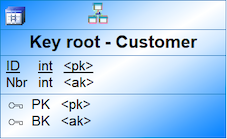
A Concept Integration Model currently holds one integration pattern: Key Root. The Key Root pattern is used to make explicit that entities from different data sources share the same identifier (business key). A key root is a hub without satellites and it can be seen as a central repository for business keys to ensure technical integration of entities from different data sources.
There are two types of key roots: key root hub and key root link. The first one is used to integrate independent entities (hubs) and the second one is used to integrate dependent entities (links). To show the relationships between key roots, you can use references.
To build a Concept Integration Model:
Create empty Concept Integration Model
Create a model from template
If the entities and helpers need to be in a specific filegroup in the database, you can For more information, please
Set Default Filegroup.
To create an empty model from a template:
- Click on
File > New Model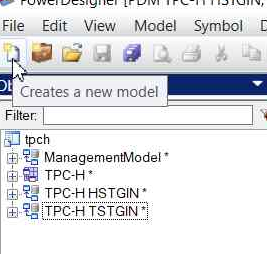
- Click on
Templatesand select the correct template according to the model that you want to create. - Enter a name for your new model in the field next to
Model name.
Following these steps results in an empty model with all the necessary default settings you need. After creating a new model, you should assign a schema to it.
Info
Consider how to set-it up the diagrams of the model: you can have only one visual diagram or more 'smaller' visual diagrams that together composes the model as a whole. If you opt for having more than one visual diagram, keep in mind that you will have just one model whose components will be visually distributed in several diagrams.
Create Key Root Hub
Add key root
To add a key root (hub or link):
- In the Toolbox area, under
i-refact - Unified Anchorized Modelling - 2.5.0, click onKey Root HuborKey Root Linkand then click on the Model Area.
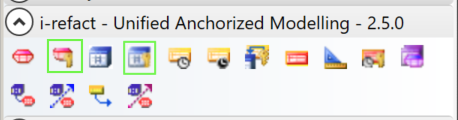
- A new key Root Anchor appears in the Model Area with the default name
HuborLink. - In the Toolbox area, under
Standard, click onPointer. Double click on the new key root. - The Window
Propertiesappears. Name: This is the business name for the object. You should use the same name used in the Logical Data Model. If you change thenameof an object, thecodewill automatically change as well.Code: This is the technical name for the object. The Code will be used in the generated SQL and DDL.Comment: You can give a more descriptive name for the table, for example the business term.Owner: Select the correct owner.
Info
If the Business Key column codes differ, Power Designer automatically creates new Business Keys - you should delete the incorrectly added Business Key and define the correct mapping manually.
Create Key Root Link for each set of of dependent entities that share the same business key
Add key root
To add a key root (hub or link):
- In the Toolbox area, under
i-refact - Unified Anchorized Modelling - 2.5.0, click onKey Root HuborKey Root Linkand then click on the Model Area.
- A new key Root Anchor appears in the Model Area with the default name
HuborLink. - In the Toolbox area, under
Standard, click onPointer. Double click on the new key root. - The Window
Propertiesappears. Name: This is the business name for the object. You should use the same name used in the Logical Data Model. If you change thenameof an object, thecodewill automatically change as well.Code: This is the technical name for the object. The Code will be used in the generated SQL and DDL.Comment: You can give a more descriptive name for the table, for example the business term.Owner: Select the correct owner.
Info
If the Business Key column codes differ, Power Designer automatically creates new Business Keys - you should delete the incorrectly added Business Key and define the correct mapping manually.
If needed, add a reference between key roots
Add reference
To add a reference between two entities:
-
In the Toolbox area, under
i-refact - Unified Anchorized Modelling - 2.5.0, click onReference.
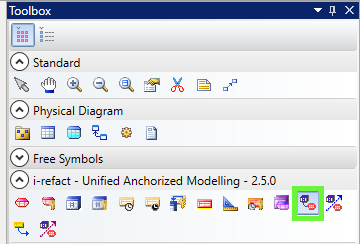
-
Drag a line from the child entity to the parent entity.
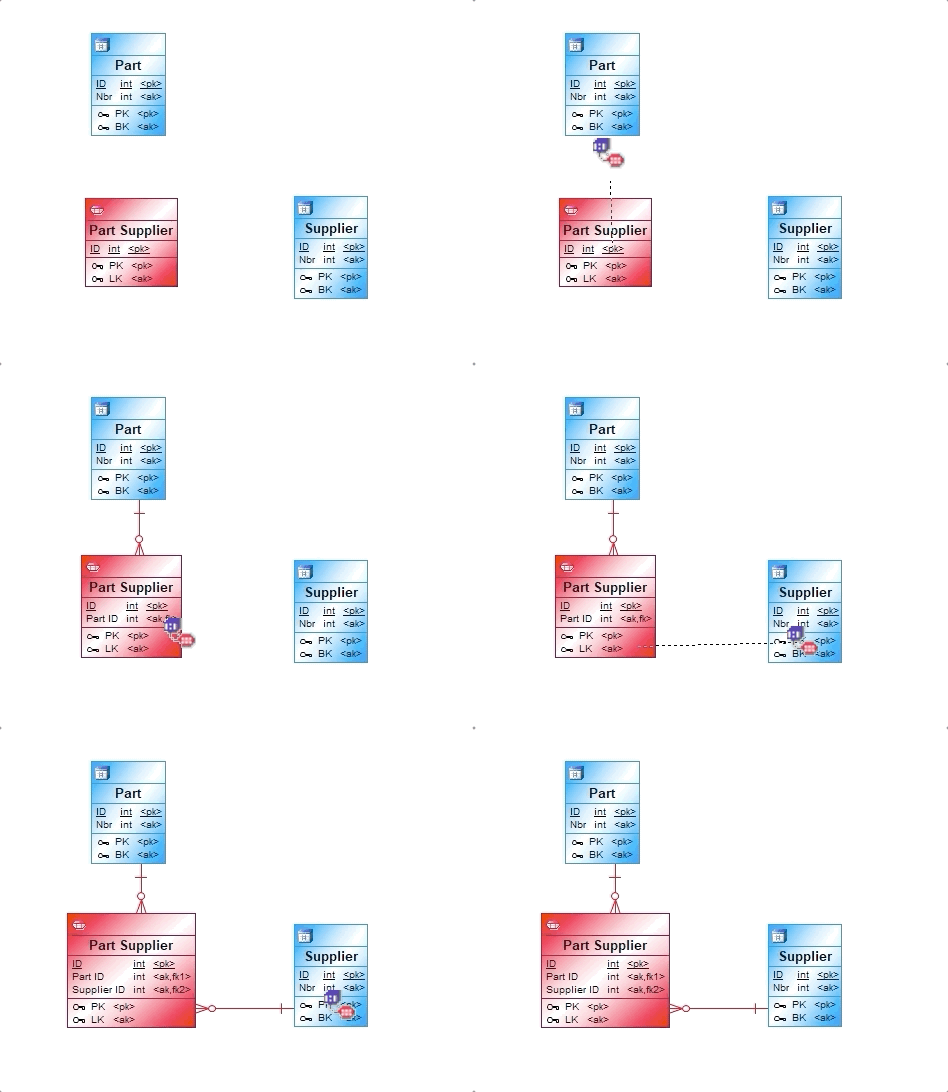
The end result of building a Concept Integration Model is a set of Key Roots (Key Root Hub and/or Key Root Link) with optionally references between them.
Tip
Consider two data sources: one with data about customers and orders (ex: TPCH), and a second one with data about customers and complaints. Consider that you need to integrate data from these two data sources and that the integration patterns should be shared, then you create a concept integration model and add a key root hub to integrate data about customers. The key root has the common identifier for customers from both data sources,i.e. the business key attribute Nbr.