Change a Generic Data Access Model
In this section you can find how to update an existing generic data access (GDAL) model from the central facts model, and how to add auxiliary relations to it.
How to change an already deployed model
If the central facts model is changed, you need to update the generic access model as well. In the following, we describe several types of updates that can happen in the central facts model and how they can be implemented in the corresponding generic data access model.
Changes to the model structure and/or relations
Changes to the model structure/relation attributes affects both the physical storage of the central facts layer data and the generic data access model. Example of these changes are:
- adding or updating an Anchor (Independent Anchor, Dependent Anchor, Foreign Key Link)
- adding or updating a business key or link key
- adding a new Context
To implement the changes in the generic data access model:
- Open the Mapping Editor
Tools > Mapping Editor... - In the following example, you see on the left the Anchor
Part, the ContextPart Propertiesand bi-temporal ContextPart Retail Price Temporal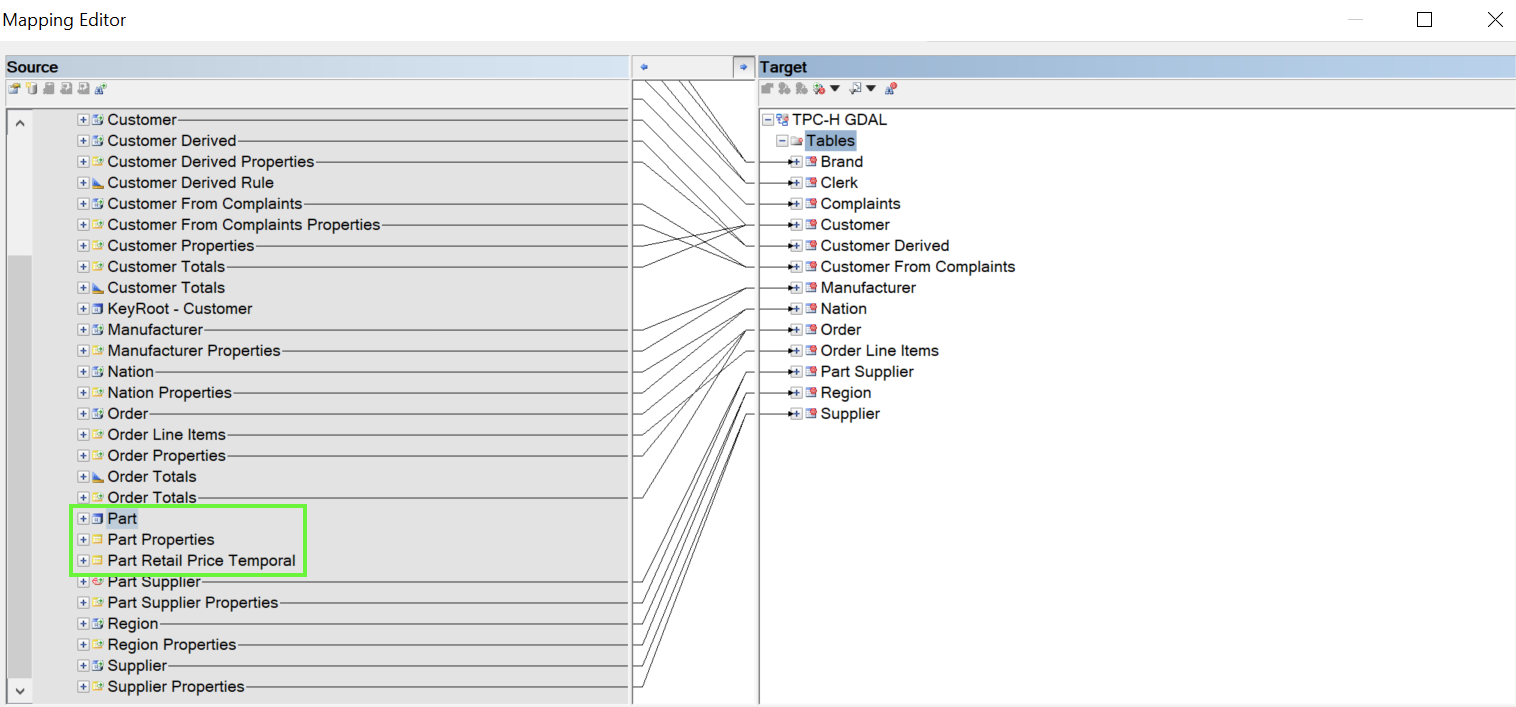
- If you want to add a new Anchor, go to step 4
- If you want to add a new Context, or update an Anchor and/or Context:
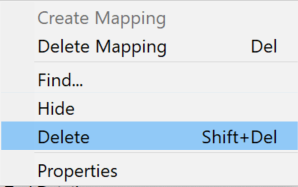
- Delete the existing generic access entity that is mapped to the changed Anchor and its related Context. Right click on the entity and select
Delete.
- Go to step 4
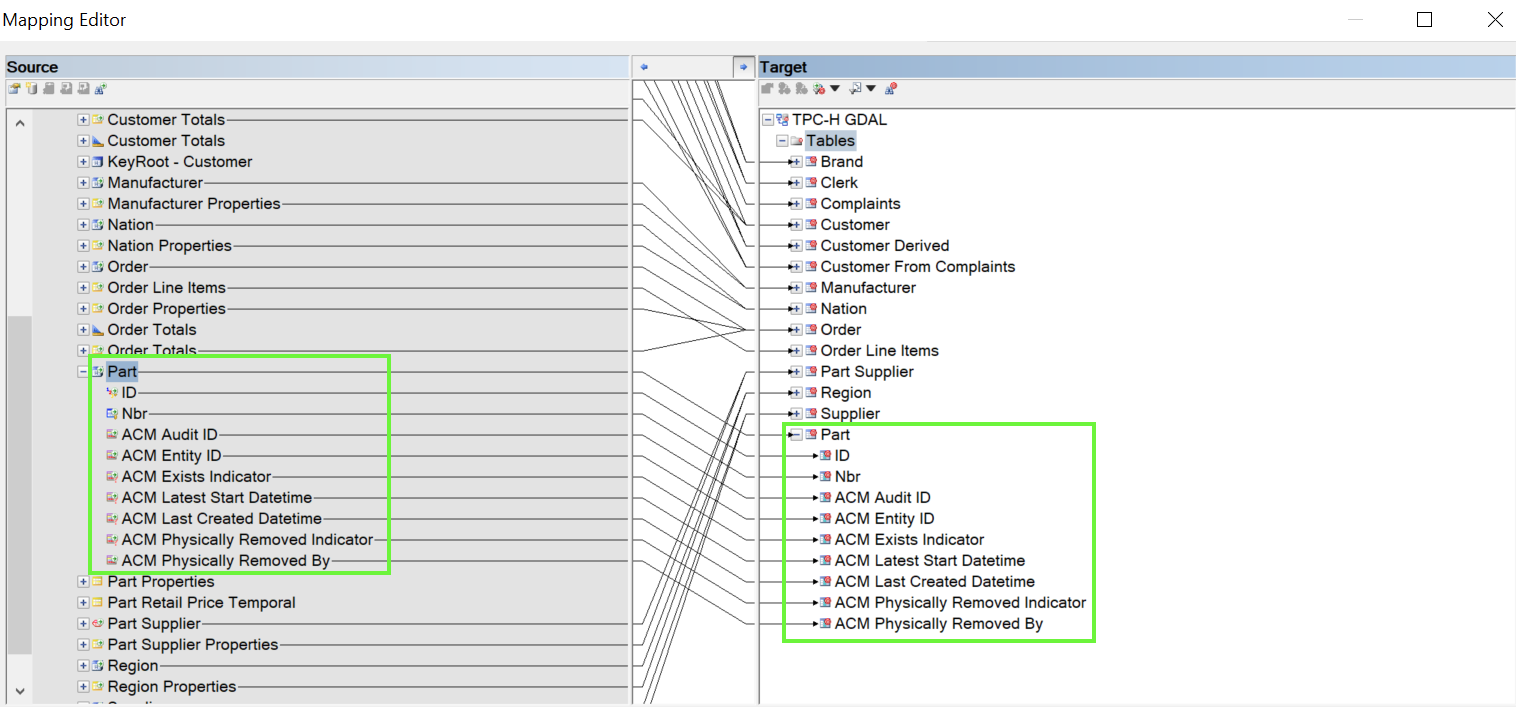
- Drag the relevant Anchor from the central facts model to the generic access model. The related Context entities will be added automatically in the next step.
- After you drag the Anchor from the central facts model to the generic data access model, the mapping relations are drawn. You'll see relations between the ID and metadata attributes. This will disappear in the following step.
- Click on
Apply. The related Context entities will be added to the generic access model and the mapping will be automatically set.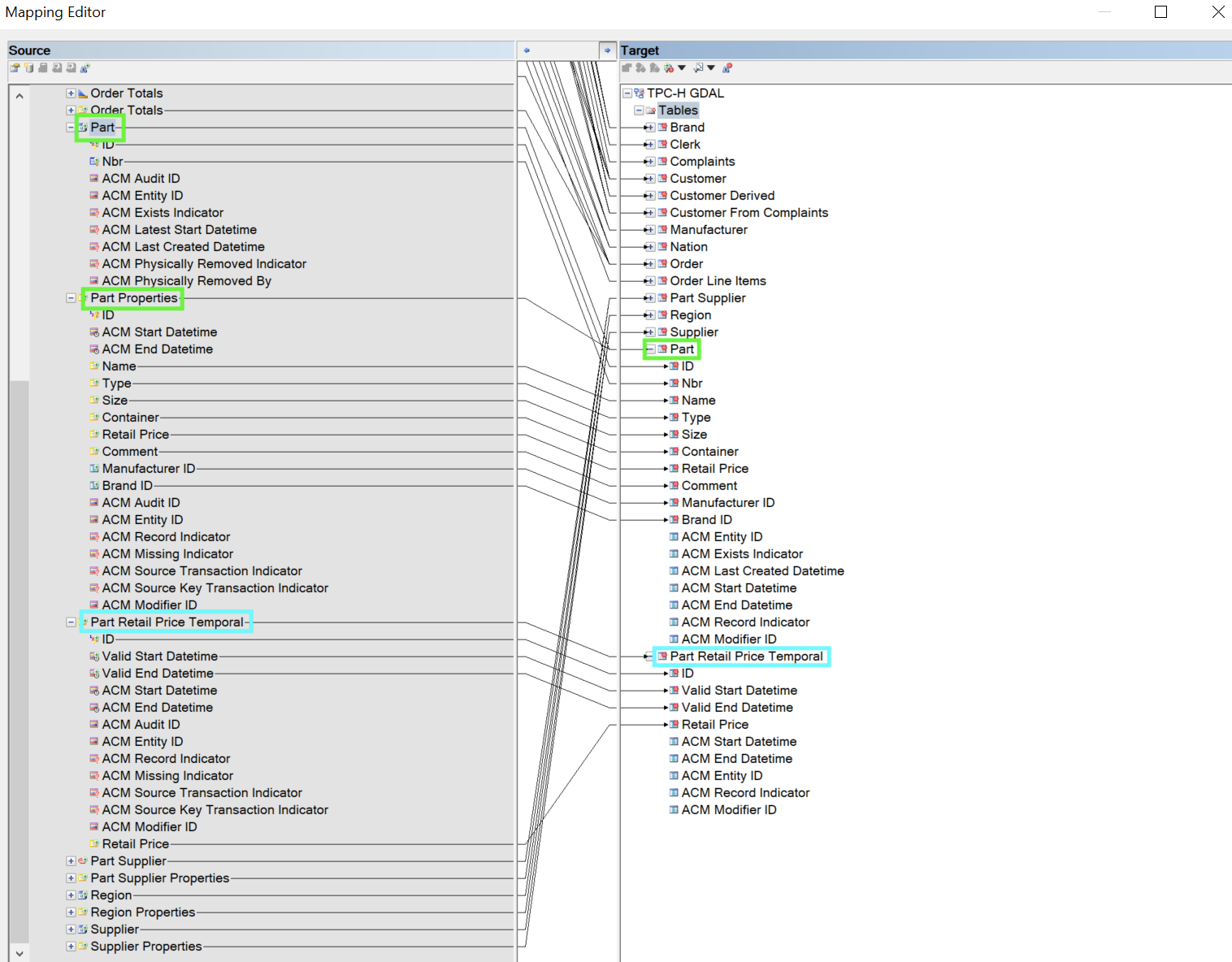
- Click on OK.
- Find in the
Object Browserthe new entity. Drag the new entity to the model area. - The Anchor can be found in the
Stable Independent Entity, all other entities can be found in theStable Dependent Entityfolder.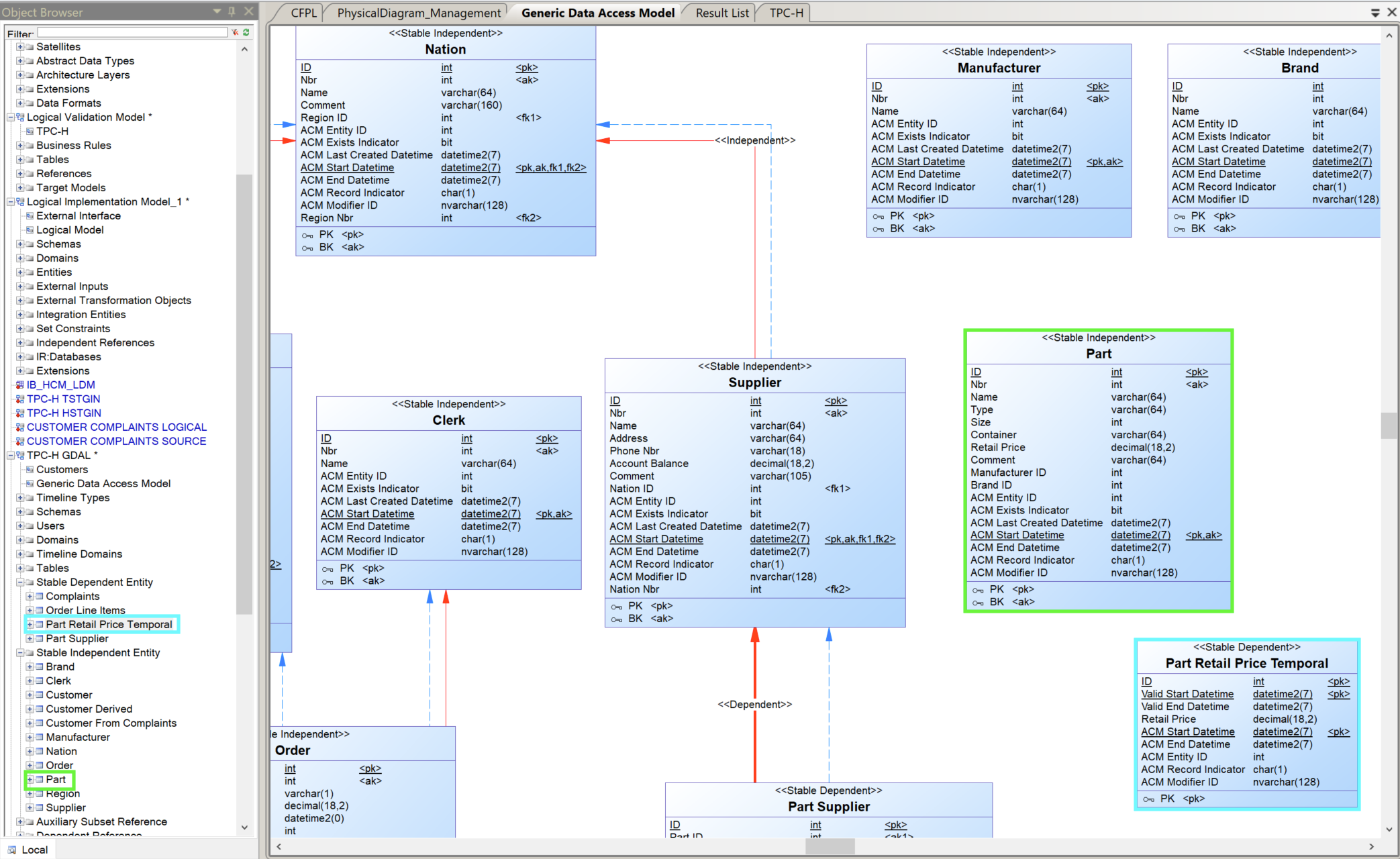
- Right mouse click on the newly created generic data access entity en select
i-refactory > Create References from CFPL. This wil recreate the relations between this entity and other entities, based on the central facts model.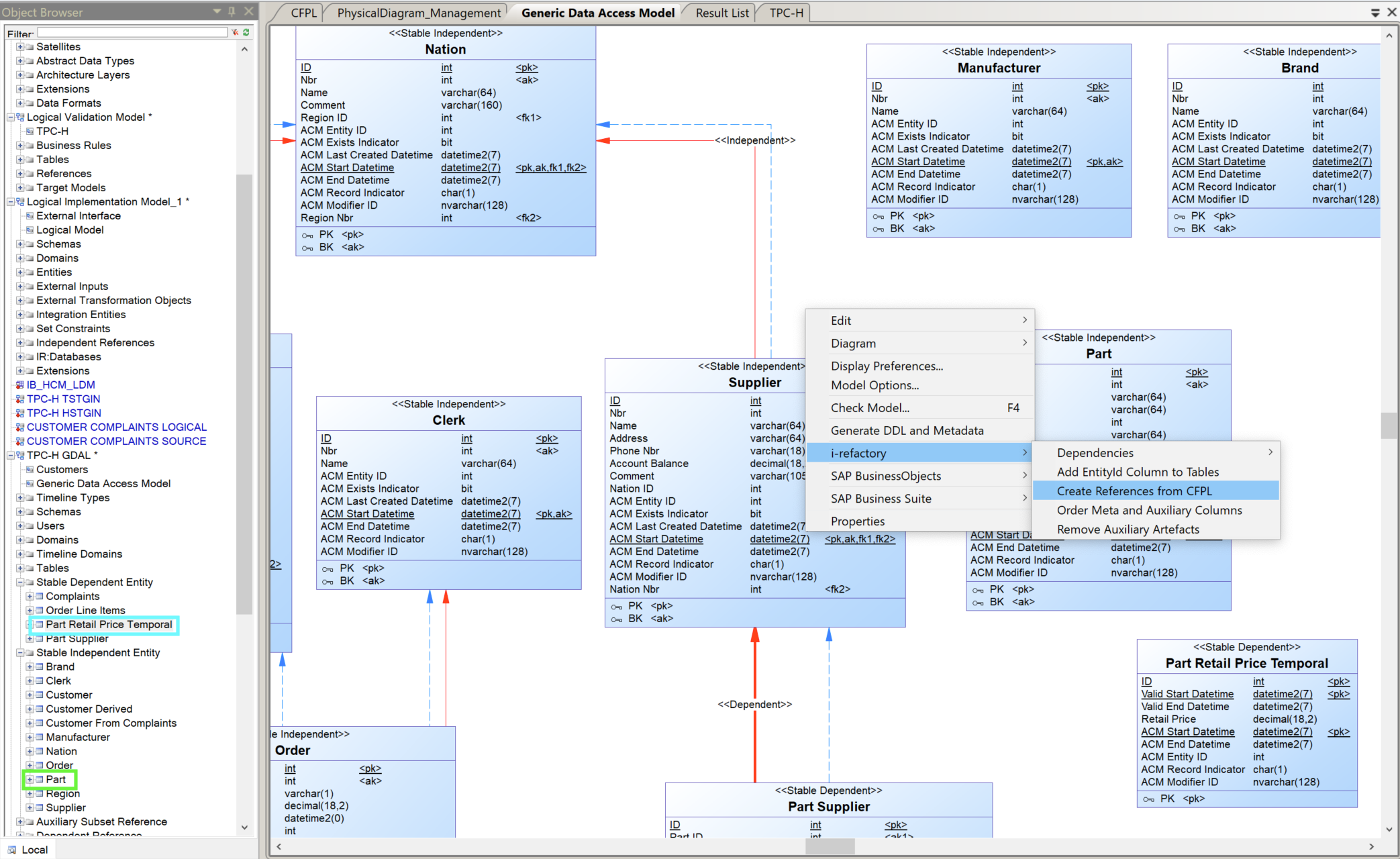
- The relations between the entities appears.
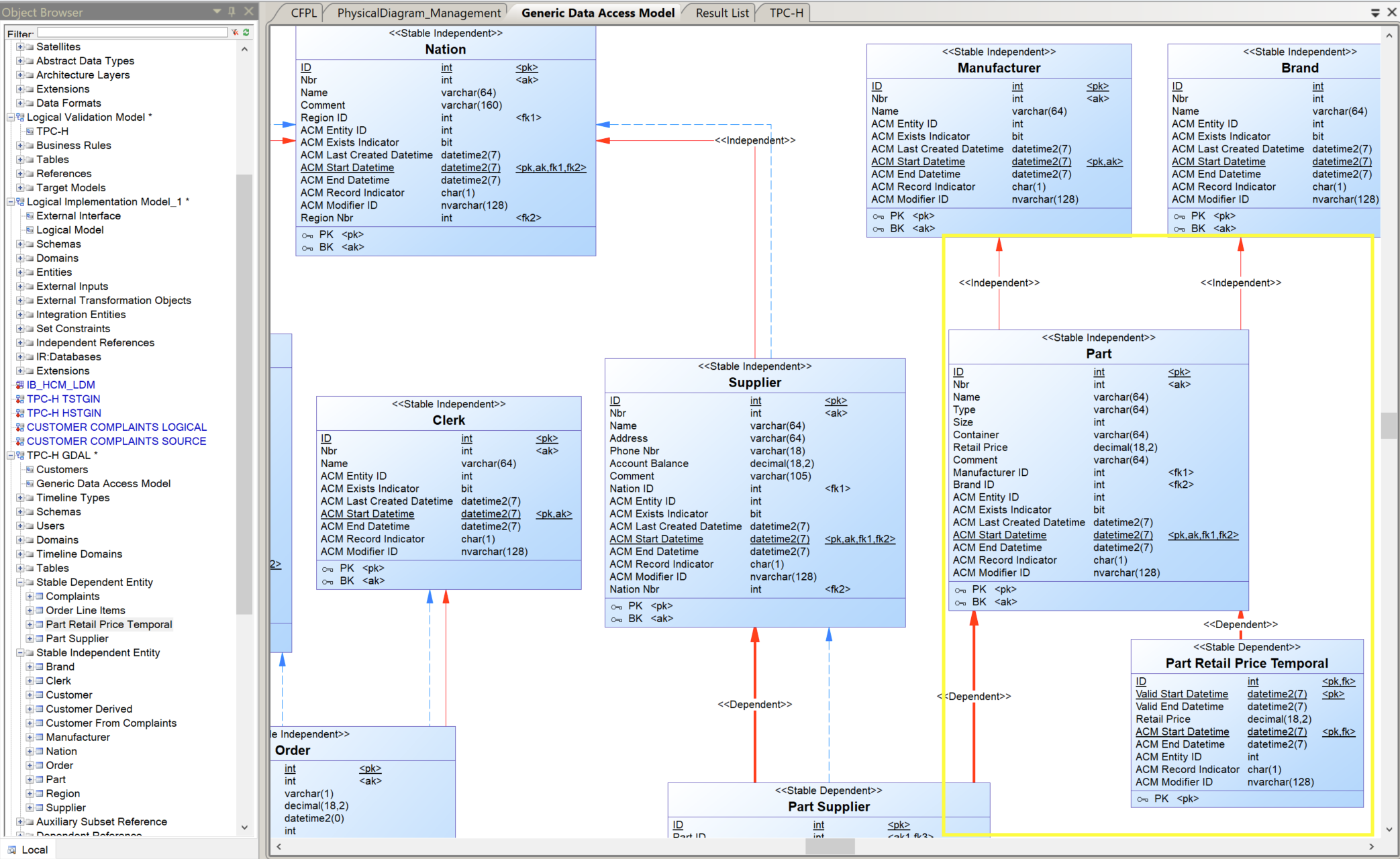
- To enforce the subset constraints of the logical validation model: add the auxiliary relations
Tip
If your change affects a reasonable part of your Model - about one third -, consider creating your generic access model from scratch.
Info
You can't add a Key Root to the generic access model.
Add an attribute to a context
To implement the inclusion of an attribute to a context in the central facts model in the generic data access model:
- Open the Mapping Editor with
Tools > Mapping Editor... - Drag the new attribute from the central facts model to relevant generic access entity.
- Click on Apply and then on OK.
Add a relationship between an Context and Anchor
If you've added a foreign key link between a Context and an Anchor in the central facts model, you need to do additional steps:
- Open the Mapping Editor with
Tools > Mapping Editor... - Drag the new foreign key attribute from the central facts model to relevant generic access entity.
- Click on Apply and then on OK.
- In the diagram, rightclick on the relevant generic access entity and select
i-refactory > Create References from CFPL. - To enforce the subset constraints of the logical validation model: add the auxiliary relations
Warning
Never drag IDs and metadata to a generic access entity.
Update an attribute in a context
To implement the update of an attribute in a context in the central facts model in the generic data access model:
- Open the Mapping Editor
Tools > Mapping Editor... - Delete the existing but now changed attribute from the generic access entity. To do this, right click on the attribute and select
Delete. - Drag the changed attribute from the central facts model to relevant entity in the generic access model
- Click on Apply and then on OK.
Warning
Never drag IDs and metadata to a generic access entity.
Delete an anchor, context or attribute
To implement the deletion of an anchor, a context or an attribute in the central facts model in the generic data access model:
- Delete the related generic access entity or attribute.
Delete a relationship
To implement the deletion of a relationship in the central facts model in the generic data access model:
- Delete the FK link attributes in the entity.
- Delete the (red and blue) relations between the linked entities.
Warning
Never delete IDs and metadata from a generic access entity.
What's next?
After you've created and checked the generic data access model:
- You can deploy the models