Archive Data Models
In this section we explain how to archive data models available in the i-refactory server. A datamodel is identified by its architectureLayer and its own Code, for example architectureLayer HSTGIN with interfaceCode TPC_H_HSTGIN.
Before you begin
You can only archive models if you are authorized (same authorization as for Importing Models).
You can archive the following model types :
- Technical Staging Models
- Logical Staging Models
- (Central) Fact Models
- Generic Data Access Models
Only database objects for Generic Data Access Models are removed. For all other models the database objects are not removed.
Archived models can no longer be used in delivery agreements, deliveries, maintenance lists.
Archive Logic
You can archive multiple models at the same time.
The archive process executes the same logic as Import Models and consists of the following steps:
- Make sure the same pre-conditions are met when Importing Models, such as no delivery can be active.
- Check for all models selected for archiving no dependent models remain active after completion. This check prevents an inconsistent state of possible orphan active models.
- Logically delete all Data Definition Metadata of the selected models and set status of the selected models to Archived.
- Logically delete all Data Definition Metadata of the connected intermediate models and set status of these intermediate models to Archived. Intermediate models are : External, Constraint Validation and File Export.
- For each Generic Data Access Model, the system will drop all related database objects.
On successful completion the changes are made effective. If there are any errors, the archive process as a whole will fail.
Warning
Be aware that an archive process is successful if all interfaces are processed. If one interface generates an error, the script will rollback and give the status Failed.
Archive metadata through UI
To archive metadata through the UI:
- Use Menu:
Datamodel > Archive.
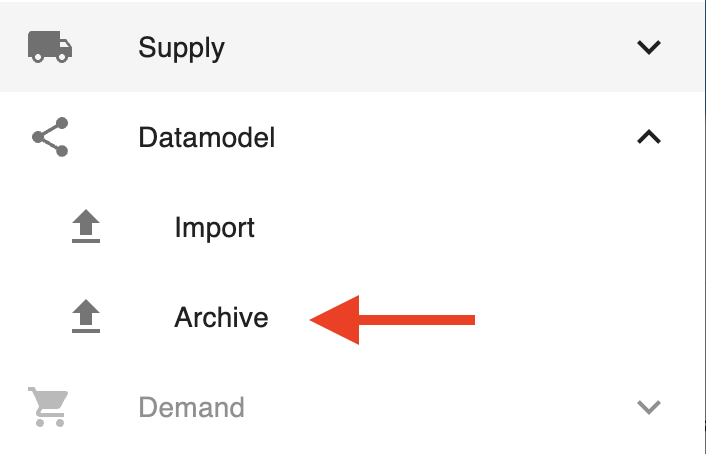
2. You land on the page that shows previous archive runs.
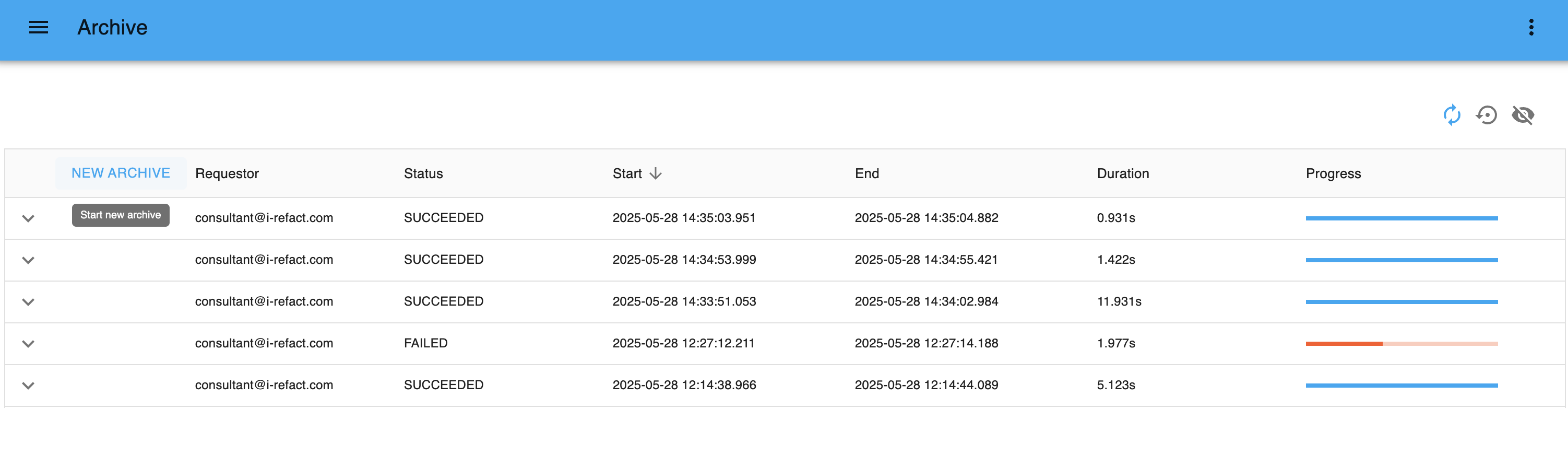
3. Press the NEW ARCHIVE button, a new dialog screen appears. Select all datamodels you want to archive.
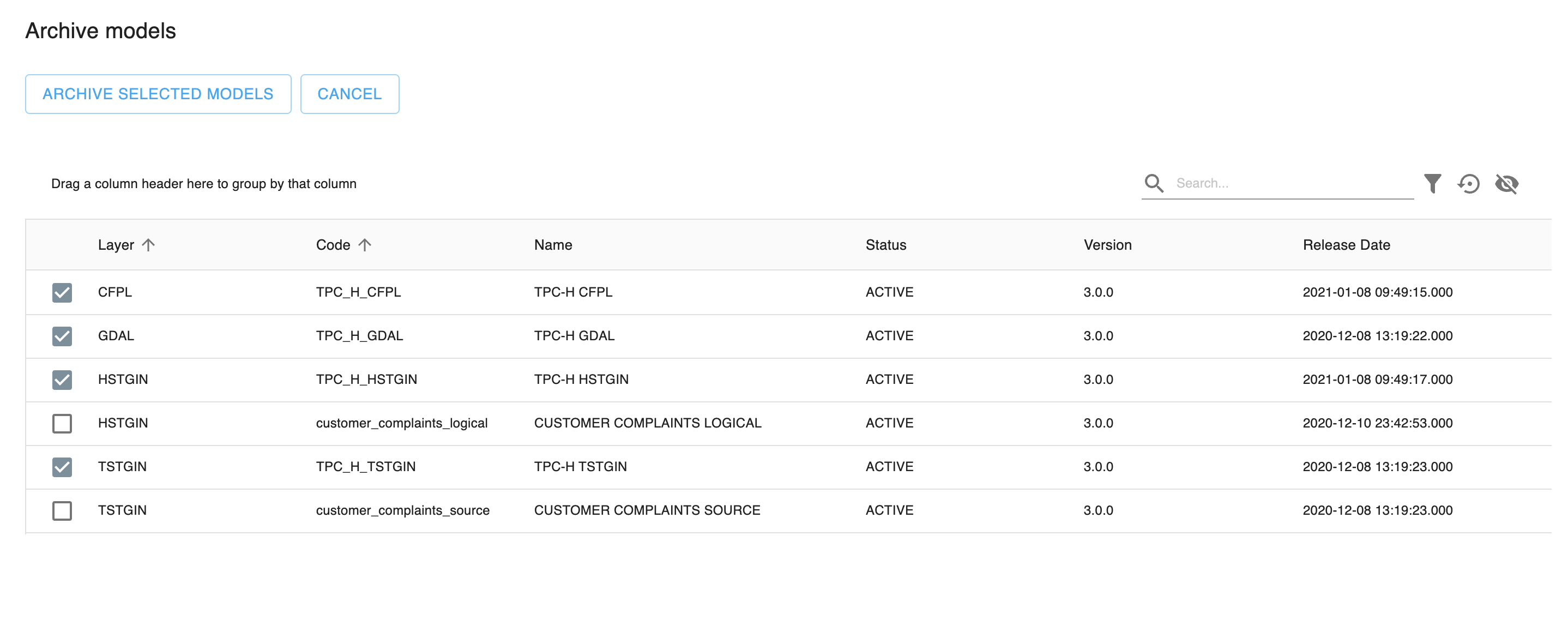
4. Click ARCHIVE SELECTED MODELS and confirm the prompt.
5. You return to the landing page that shows the archive runs. The run you started is the first one in the list. The status and details of the run are equal to the way Import Models work, since the archiving process mimics the Import Models process without providing any content (such as entities and attributes).
6. To cancel the metadata import: click on CANCEL on the dialog screen.
As long as the archive is running it will have the status Processing, when it is finished it either has the status Succeeded or Failed.
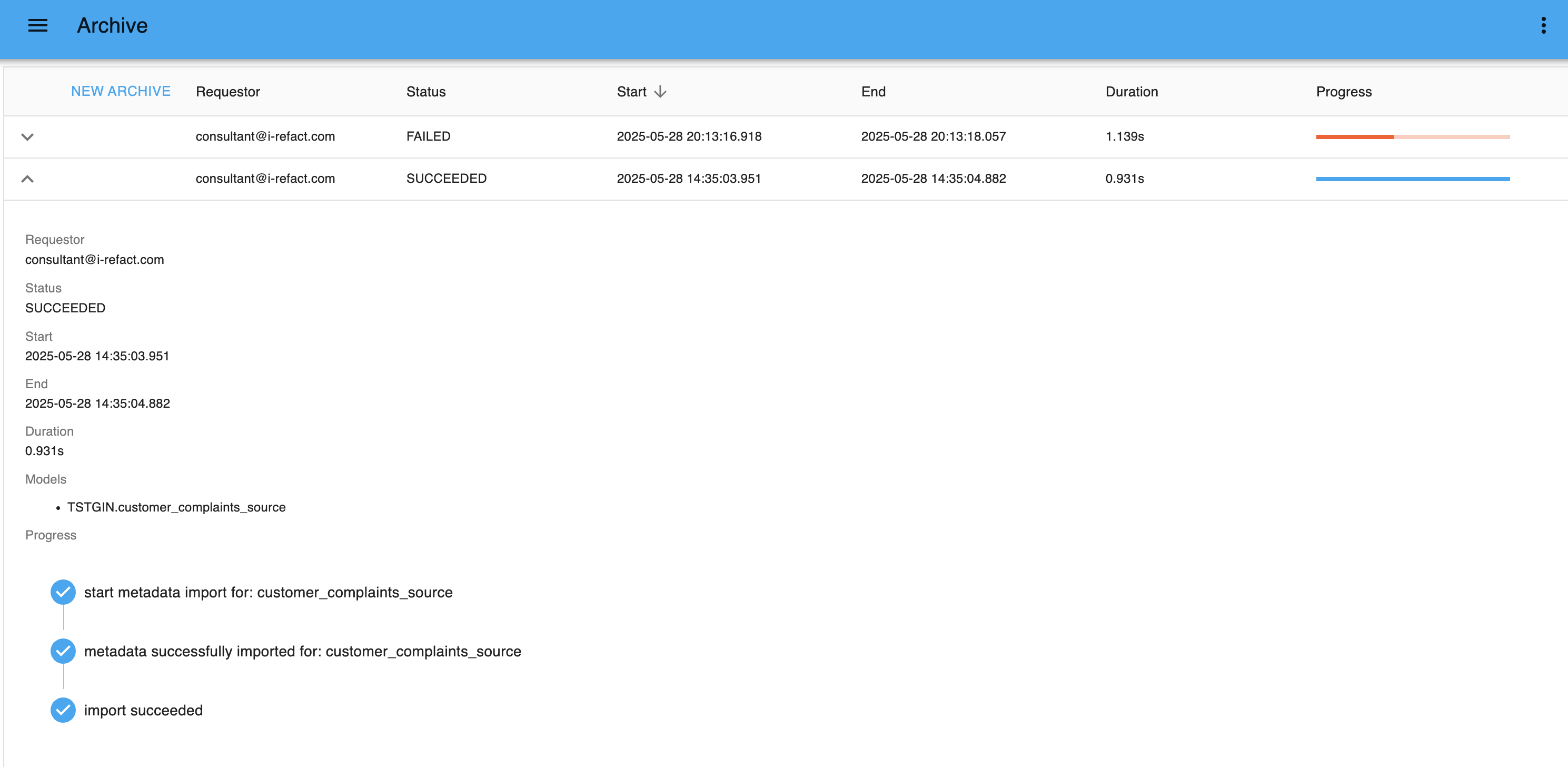
In case of a failed import you can download the results of the failure as a JSON file. It will contain (as far as possible) all the encountered errors on the most detailed level.
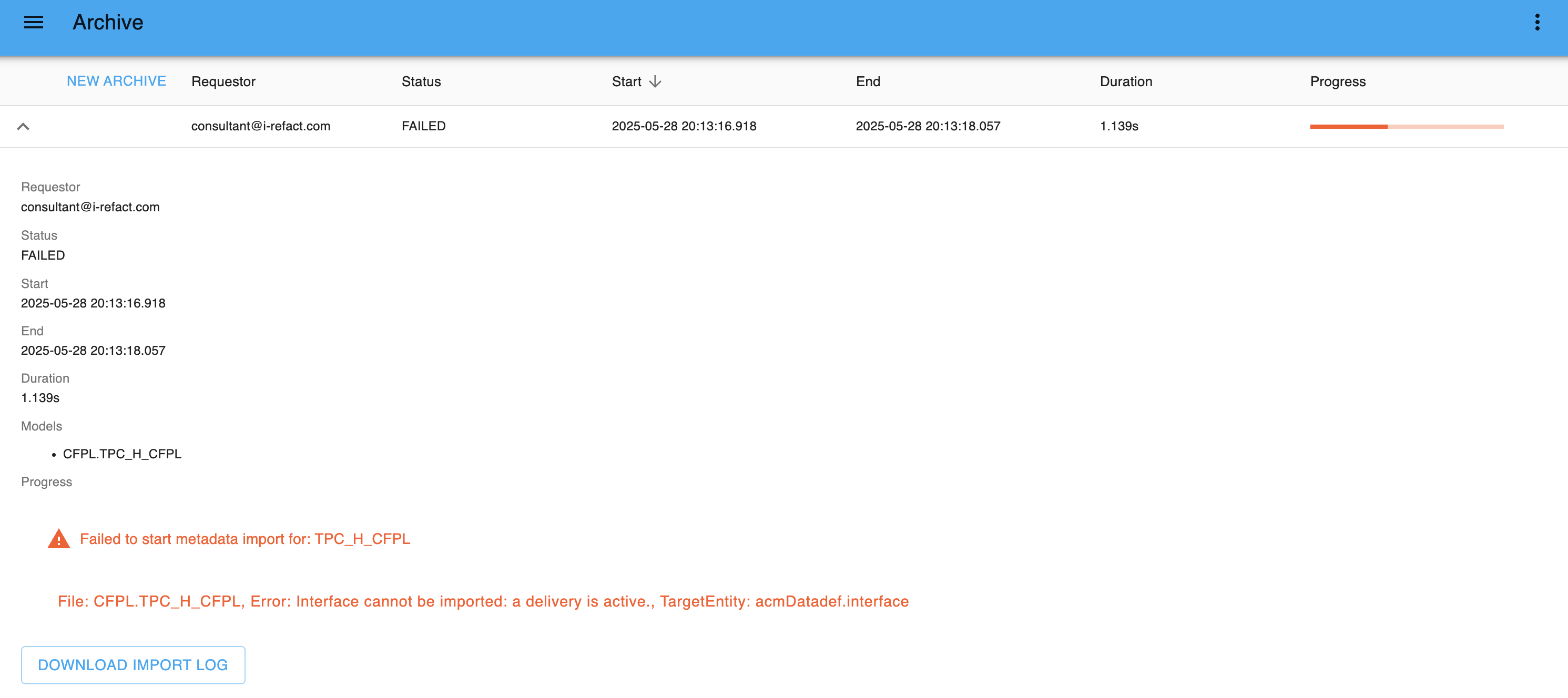
Example of an archive error in JSON:
Below you see an example of an archive model error:
- The archiving action for model
TPC_H_CFPLin architectureLayerCFPLfailed. - In the error message you can interpret that an active delivery is found that causes the archiving action to fail.
[
  {
    "name": "CFPL.TPC_H_CFPL",
    "errors": [
      {
        "target$entity": "acmDatadef.interface",
        "records": [
          {
            "@error": {
              "onRecord": [
                {
                  "context": "support.i-refactory.MetadataImport",
                  "code": 5,
                  "message": "Interface cannot be imported: a delivery is active."
                }
              ],
              "onAttribute": {}
            },
            "architecture_layer_code": "CFPL",
            "code": "TPC_H_CFPL",
            "exported_for_irefactory_schema_version": "3.0.0",
            "requires_irefactory_application_version": ">=3.0.0",
            "created_with_irefactory_modeller_version": "3.0.0",
            "status": "ARCHIVED"
          }
        ]
      }
    ]
  }
]
How to handle Errors?
When the archive fails, you need to examine the root-cause and take appropriate actions to make sure next archive run will succeed.
| Context | Message Description | Most logical cause | Possible resolution |
|---|---|---|---|
| support.iRefactory.Record | Referenced record not found | A Mapping is found to an Entity in another active Model (not selected for archiving) | Check your model selection. |
| support.iRefactory.MetadataImport | Interface cannot be imported: a delivery is active | There is an active delivery | Make sure the delivery is finished and end-date the delivery agreement before importing the metadata. |
How to reactivate an archived model ?
You can re-activate an archived model by importing the model.
Warning
Be aware that the archiving process did not remove database objects that can hold data. If you re-activate an archived model the database DDL can be out of sync with your imported metadata.