Manage Tenants
In this section we show how to create a new tenant as well as how update or delete an existing tenant.
Before you begin
- Make sure you understand the concepts of our Data Logistics. For detailed information, you should read the i-refactory Data Logistics.
- Make sure the databases are created
Manage Tenants using the web app
To create a new tenant:
- Click in the menu on
Management > Tenant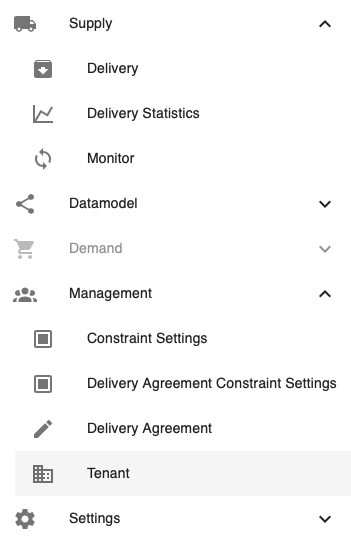
- Click on
New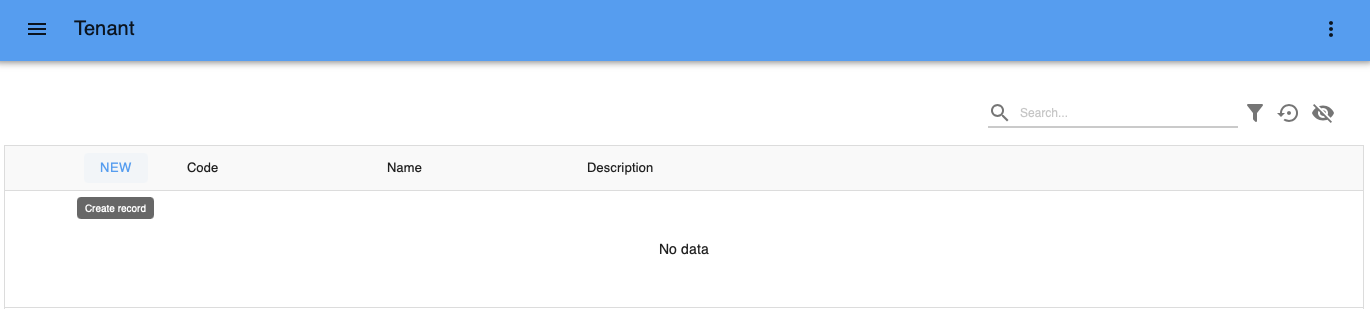
- Enter in the Code, Name and Description of the tenant
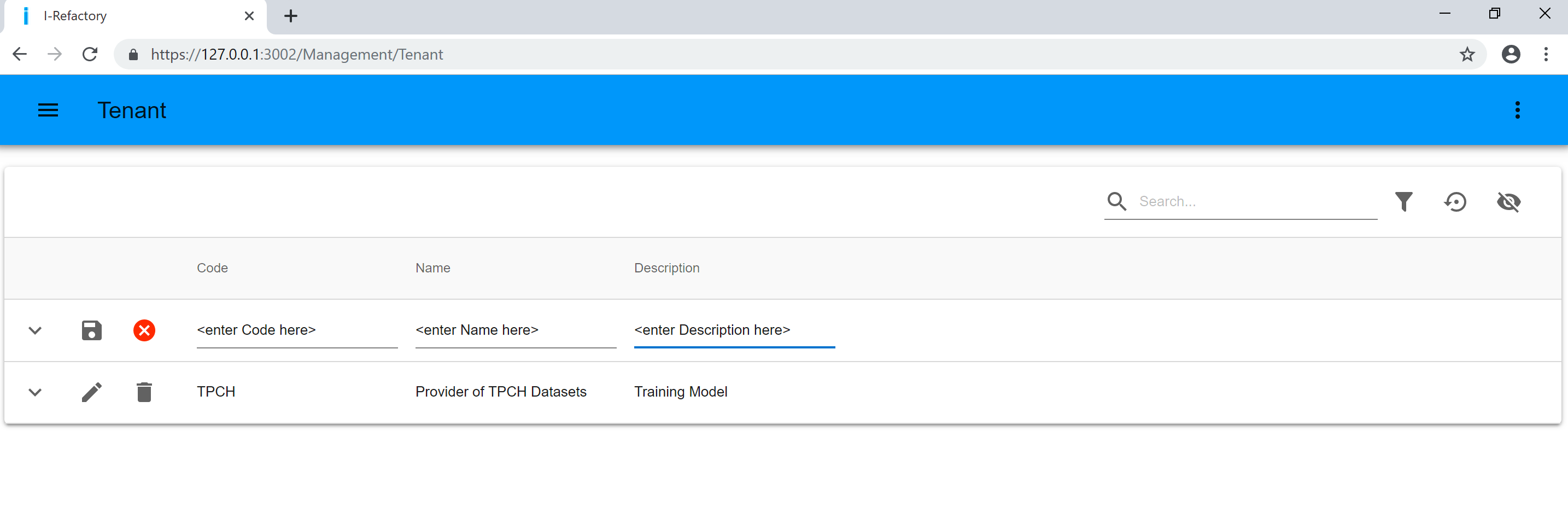
- Click on the
Saveicon to save the changes
- To cancel the changes, click on the
Cancelicon.
To change a tenant:
- You can change a tenant by using the pencil icon.

To delete a tenant:
- You can delete a tenant by clicking on the garbage can icon.

Warning
Deleting is only allowed when tenant is not linked to a Delivery Agreement.
Manage Tenants using API
You can use our API /acmDatadel/tenant to create, read, update, and delete tenant data.
What's next?
- Create and manage Delivery Agreements between the Tenant and the Delivery
- Check the overview