Manage Delivery Agreements
In this section we show how to create a new delivery agreement. Delivery agreements formalize the exchange of data, both incoming data and data that is exported.
Before you begin
- Make sure you understand the concepts of our Data Logistics. For detailed information, you should read the i-refactory Data Logistics.
- Make sure the databases are created
- Make sure the interface exists. If it doesn't exist, import the metadata of the interface.
- Make sure a tenant is created
Warning
A delivery agreement can only be created if an interface and a tenant already exist.
Manage Delivery Agreements
Delivery Agreements can be defined using the UI or you can use our API /acmDatadel/deliveryAgreement to create, read, update and delete delivery agreement data. The configuration of Data Delivery Agreements is explained based on how to define Delivery Agreements with our UI.
For Delivery Agreements related to incoming file-based deliveries to the Logical Validation Layer (HSTGIN)
- Click in the menu on
Management > Delivery Agreement - Click on
New
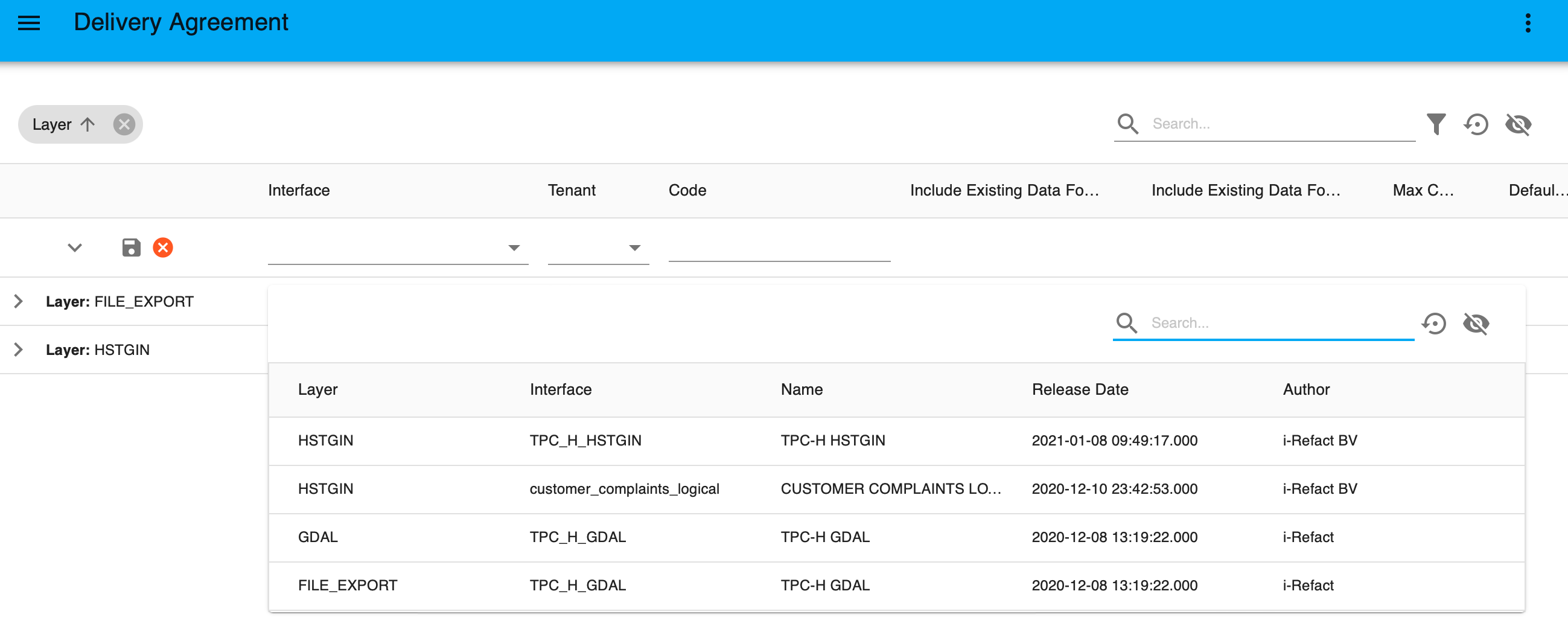
- From the dropdown menu, select the correct interface of Layer HSTGIN.
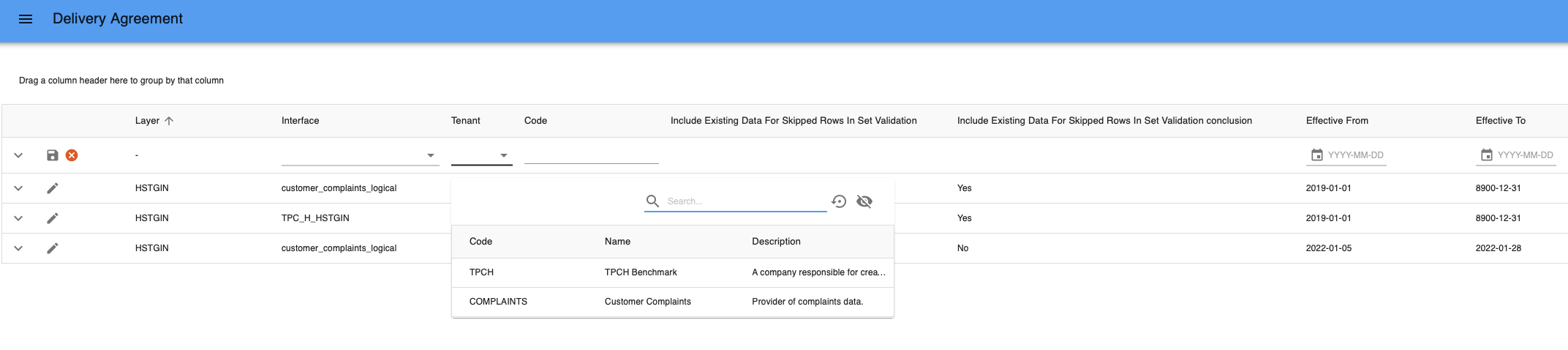
- From the dropdown menu, select the correct tenant.
- Enter a Code for the delivery agreement
- Enter the duration of the delivery agreement (
Effective FromandEffective Todates) - With these options you can define settings that influence the validation process
include Existing Data For Skipped Rows In Set Validation:
In a delivery, if basic constraints are violated and rows are rejected, i-refactory will by default try to fetch the known data of these rejected rows from previous deliveries. The default behavior can be changed for deliveries see i-refactory server release notes v.3.2.0 for more detailsDefault: inherits the value from the interfaceYes: i-refactory tries to fetch the known data of these rejected rows from previous deliveries. This data is then used to perform set validations on rows in the current delivery that did not get rejected.No: If this flag is set to 'NO' the i-refactory will not fetch the data of skipped rows for set validation.
-
include Existing Data For Skipped Rows In Set Validation Conclusionshows the computed value for this Delivery Agreement.
The table below shows howincludeExistingDataForSkippedRowsInSetValidationConclusionis computed for a Delivery Agreement vis-a-vis the Interface.Delivery Agreement value Interface value Delivery Agreement Conclusion DEFAULT YES YES DEFAULT NO NO YES NO YES NO YES NO
!!! tip
This setting can also be found when creating an individual delivery, the setting there takes precedence over the delivery agreement.
8. Optionally you can extend the configuration of this Delivery Agreement to manage system resources -read more here-.
For deliveries related to this Delivery Agreement you can restrict the maximum number of tasks a delivery can claim and you can make reservations: the minimum amount of free processing slots the i-refactory engine needs to reserve for deliveries on this agreement :
- maxConcurrentEntityUpdates. The sum of entity updates used by this delivery shall not exceed this limit.
- defaultMaxConcurrentEntityUpdates. Value used for a delivery if the delivery doesn't specify a maximum of entity updates.
- defaultReservedEntityUpdates. The number of entity updates that should be reserved for this delivery agreement. If the delivery doesn't specify a reservation, this value is used.
- maxReservedEntityUpdates. The sum of reservations made by deliveries for this delivery agreement cannot exceed the number specified here.
9. Click on the Save button.
For Delivery Agreements related to online transactional processing based integration, also known as CRUD (GDAL)
- Click in the menu on
Management > Delivery Agreement - Click on
New - From the dropdown menu, select the relevant interface within Layer GDAL.
- From the dropdown menu, select the correct tenant.
- Enter a Code for the delivery agreement
- Enter the duration of the delivery agreement (
Effective FromandEffective Todates) - Click on the
Savebutton.
For Delivery Agreements related to outgoing file-based deliveries from the File Export Layer (FILE_EXPORT)
- Click in the menu on
Management > Delivery Agreement. - Click on
New. - From the dropdown menu, select the relevant interface within Layer FILE_EXPORT.
- From the dropdown menu, select the correct tenant.
- Enter a Code for the delivery agreement.
- Enter the duration of the delivery agreement (
Effective FromandEffective Todates). - Optionally you can extend the configuration of this Delivery Agreement to manage system resources -read more here-.
For deliveries related to this Delivery Agreement you can restrict the maximum number of tasks a delivery can claim and you can make reservations: the minimum amount of free processing slots the i-refactory engine needs to reserve for deliveries on this agreement :maxConcurrentEntityUpdates. The sum of entity updates used by this delivery shall not exceed this limit.defaultMaxConcurrentEntityUpdates. Value used for a delivery if the delivery doesn't specify a maximum of entity updates.defaultReservedEntityUpdates. The number of entity updates that should be reserved for this delivery agreement. If the delivery doesn't specify a reservation, this value is used.maxReservedEntityUpdates. The sum of reservations made by deliveries for this delivery agreement cannot exceed the number speficied here.
- Click on the
Savebutton.
What's next?
After these steps, you have successfully created a new delivery agreement. You can modify the delivery agreement by using the pencil icon.
- If you have model constraint settings that may differ between Tenants, you can configure the Delivery Agreement Constraints
- Check the overview