Monitor Active Deliveries
In this section we show how to monitor active and scheduled deliveries.
Monitoring active deliveries
You can monitor active and scheduled deliveries in the Monitor screen. Given the fact that deliveries trigger the automated processing of all data logistics, you need an overview of what is running and what needs special attention.
If you choose menu > Supply > Monitor this will show all active Deliveries and their status. This screen is also your default screen when you start up the i-refactory web app.
The donut graphs at the top show the number of active entity updates per layer and the status of the updates. If an entity update fails, the center of the donut graph colors red. If no failures exist, the donut colors dark blue.
If you hover over one of the segments of the graph the description and color of the center of the donut changes. If you click on a segment of the donut, a list with all entity updates of that particular segment is shown.
Info
Please note that once a delivery reaches its end-state, this delivery will no longer be shown on this monitor. You can analyze deliveries that reach their end-state with the Analyze Deliveries.
Details for Active Deliveries
In the monitor you can also see an overview per Delivery. For each active Delivery you can see the status, start time, elapsed time, and the entity updates per layer and per status.
- Clicking on the "..."-button will show a list of all entity updates for that Delivery
- Clicking on a segment in the bar graphs will show a list of entity updates for that specific segment.
- If a Delivery has failed entity updates all the failed entity updates can be retried again by clicking the
retrybutton. - When the list of entity updates is shown you can retry a specific failed entity update. Or you can choose to view the generated load code.
- To view all the details of an entity update click the drop down button.
Setting an auto refresh interval
If you automatically want to refresh the graphs on the monitor page, you can set an interval in seconds.
Set to automatic refresh
- Click on the refresh icon
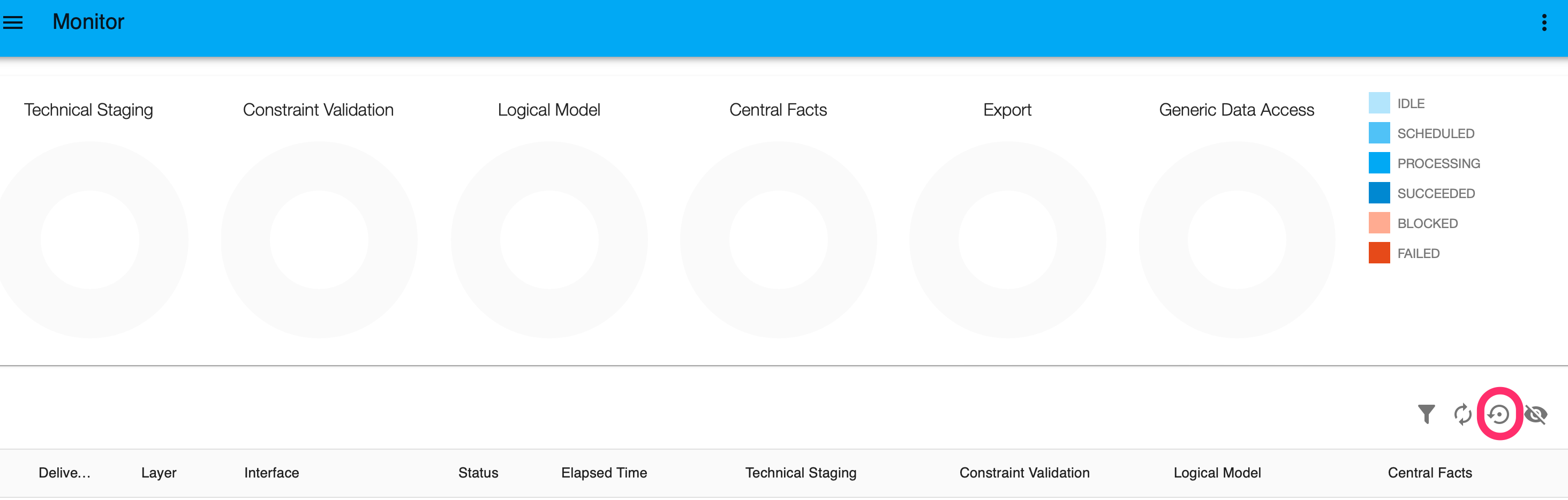
- The icon turns blue. The graphs will automatically refresh after 30 seconds
To adjust the refresh interval:
- Open the refresh interval settings:
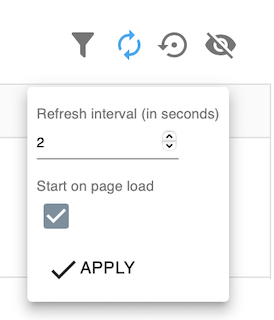
- For Windows users: Press
CTRLand click with your left mouse button on the refresh icon. - For Mac users: Press
Commandand click with your left mouse button on the refresh icon. - Set an interval in seconds.
- Start on page load: check this option if you want a refresh to start if the page is reloaded.
- Click on
Applyto submit the changes
Reject a Delivery
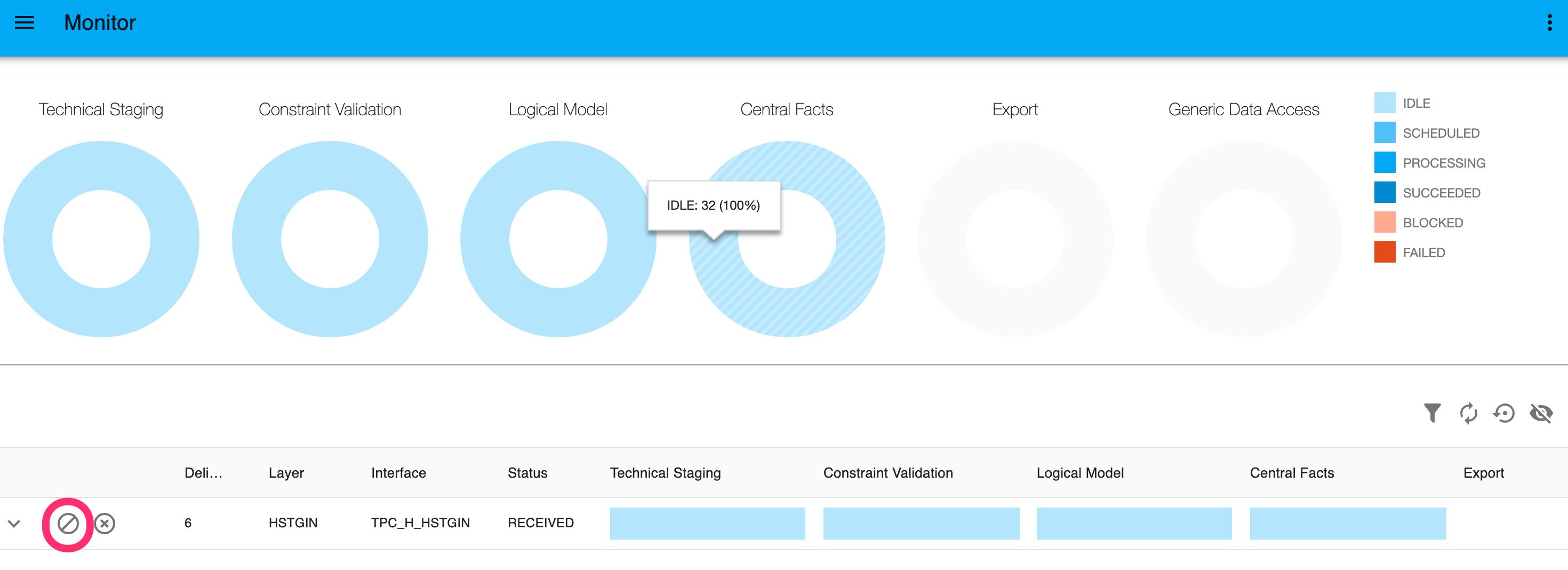
It is possible to Reject a delivery while the status of a delivery is still on RECEIVED. If you reject a delivery, the end-state is met directly and the delivery is no longer shown as Active Delivery. You can find the Rejected Delivery in the Analyze Deliveries screen.
- Click on the
Rejectsymbol to reject a delivery.
Info
If the status of the delivery is on RECEIVED, the technical loading tasks are not yet finalized. If the technical loading tasks are finished, the status of a delivery will change to LOADED and rejecting a delivery is not possible.
Cancel a Delivery
For deliveries that started processing and cannot reach their end-state (for example, a database error), users with a Developer role have the option to cancel a delivery.
If an active delivery is cancelled, IDLE and SCHEDULED tasks will not be executed anymore. The already PROCESSING tasks will continue and finish.
- If the
Cancelis executed while the entity updates are in the Technical Staging Layer (TSL) or during the Constraint validation check, this will not require additional steps. - If the
Cancelis executed while the entity updates are in the Logical Validation Layer (LVL), this can lead to interfering effects. - If the
Cancelis executed while processing tasks related to the File Export Layer, this could result in an inconsistent set of files on the target file location. In order to prevent issues for data consumers, it is advised to delete the folder created by the corresponding delivery.
Warning
Cancelling Deliveries could lead to an unwanted intermediate state of your data if the cancel happens after the Technical Staging Layer (TSL). A cancel is not a rollback to a previous state. If you cancel the current Delivery, the processed and successful entity updates in these delivery are stored in the Central Facts Layer, while the idle and scheduled tasks are stopped.
If a Cancel is executed while delivery is processed in the Logical Validation Layer, you have to take into account the effect of the next Delivery on the state of your data:
- Suppose your previous delivery was a Full delivery.
- You cancel the current delivery, while entity updates are already in the Logical Validation Layer (LVL) or later.
- The processed and successful entity updates are then stored in the Central Facts Layer (CFL), while the idle and scheduled tasks are stopped.
- This results in a state where record
Ais stored in the Logical Validation Layer (LVL) but not in Central Facts Layer (CFL).
- This results in a state where record
- If in a next delivery, record
Ais submitted, a compare will be made between the Technical Staging in Layer and Logical Validation Layer. Because recordAis already in the LVL, this record will not be delivered or updated in the CFL.
Info
The intermediate status of a Cancelled Delivery (as long as not all processing tasks are either succeeded or failed) is CANCELLING.
Required user role to cancel a delivery
Cancelling a delivery is only allowed if a user has been granted the role of Developer.
Tip
It's possible to disable the Developer role on server level. For example: A user is granted the Developer role in the development environment, but on a production environment the user is never allowed to cancel a delivery. The Developer role can be disabled by setting this value in the config file: application.disabledRoles.
How to fix the intermediate state due to a cancelled delivery to the LVL Layer
Ask advice from our consultants because the fix depends on the type of delivery. Generally, you need to check which records are not successfully updated from the LVL to the CFL and make sure these records are updated in the CPL.
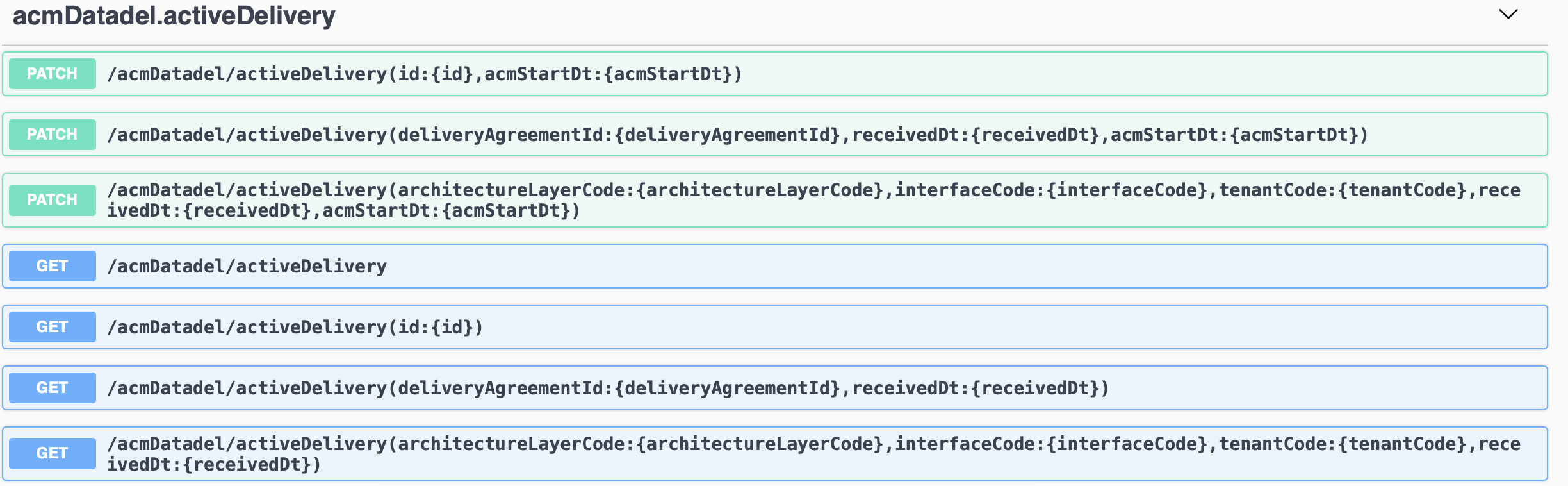
Managing Active Deliveries through APIs
You can find the API documentation on: <hostname>:3001. For example: https://localhost:3001/
Common Error Handling
-
FAILED Cannot insert NULL into...: In most cases this means you have a problem with the mapping to one of your primary keys or you have a violation of your relationship constraint with a threshold > 0. This means you need to check your mappings or your constraints. -
FAILED The number of values in the select statement is higher than the number of values in the insert statement: The number of columns in the Context is higher than expected. This means you need to check if your primary key is not also a column in your satellite.
Warning
When the status is FAILED the delivery is not in an 'end state'. This means that you will need to set it to an acceptable end state first (for example, click on Retry and try to get the state to Succeeded or click on Reject) before you can continue for a new Delivery.
What's next?
- If the delivery is finished, you can analyze the delivery statistics
- You can also read more about the delivery process
- Check the overview